Running the night from the dispatch board.
Everything the triage desk does in Trailwinds Dispatch, in the order a night actually happens: take the call, create the assignment, watch it accepted, handle the decline, and pull the numbers the next morning.
Who does what
Four roles, and each one sees a different app. Roles are set by an administrator under Admin → Staff, and they are enforced on our servers — not just hidden on screen.
| Role | Where they work | What they can do |
|---|---|---|
| Triage | Web dashboard | Create assignments, reassign, re-page, defer, edit, cancel. Sees the live board, the staff roster, and reports. |
| Admin on call | Web dashboard + iPhone | Everything triage can do, plus setup: staff accounts and roles, the patient list, and the organization's escalation and response settings. |
| Field nurse | iPhone app | Receives assignments, accepts or declines, confirms arrival, completes the visit. The web dashboard shows a nurse-only account a pointer to the app. |
| Leadership | Web dashboard | The same live board, read-only — no action buttons — plus the full reports section. |
Every screenshot in this guide comes from a demonstration system. The patients, nurses, addresses, and phone numbers in it are invented — no real patient information appears anywhere on this page.
Signing in
Access is invitation-only: an administrator adds your work email first, and there is no public sign-up. The first time you use a computer, you sign in with a code we email you.
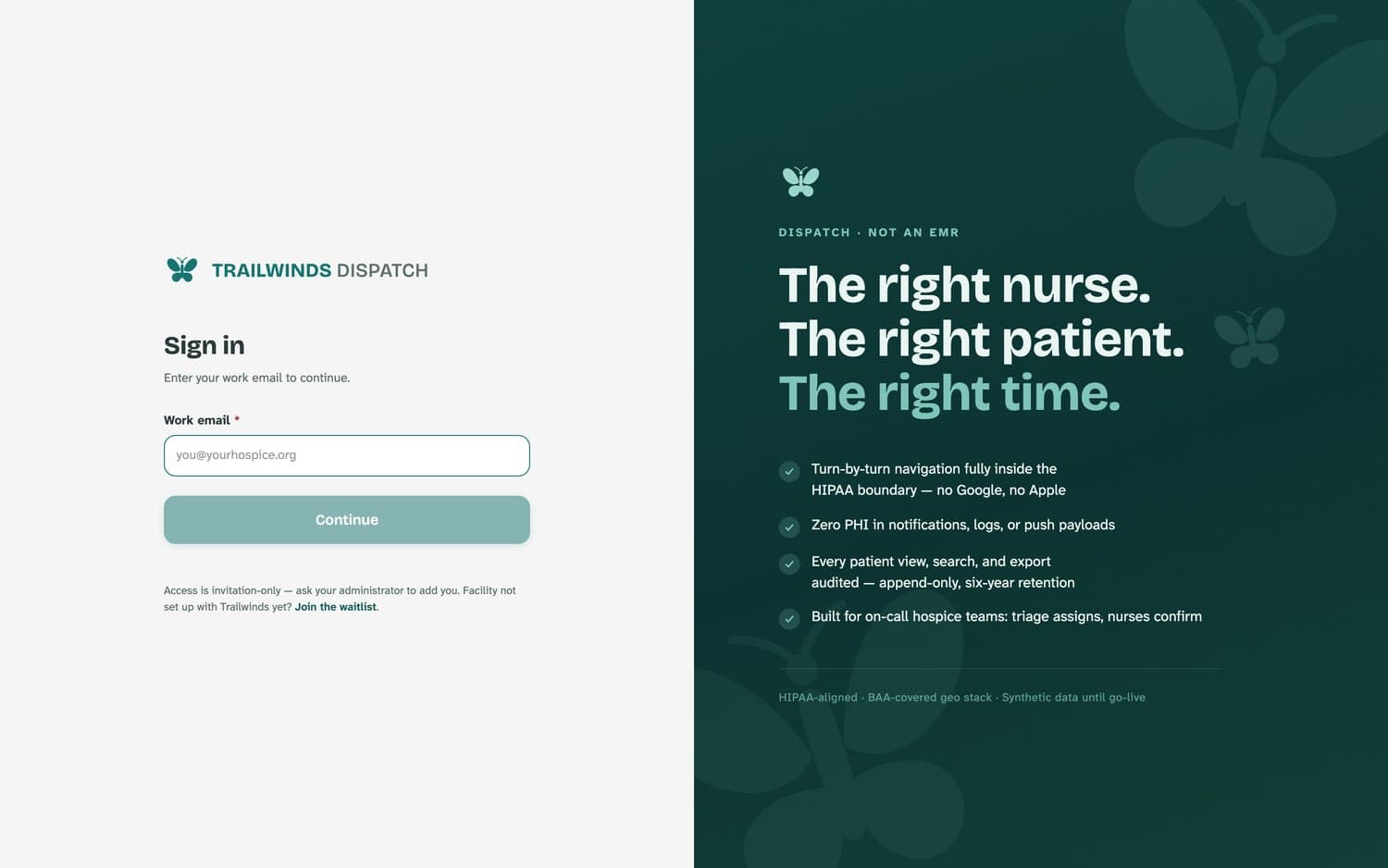
What the security settings mean for your shift
- 12-hour sessions
- You are signed out after twelve hours no matter what, so a session cannot quietly outlive a shift.
- 15-minute lock
- Leave the board idle and it locks; your password (or Face ID on the desktop app) brings it straight back with nothing lost.
- Five wrong tries
- The account locks. An administrator unlocks it under Admin → Staff — you do not need to call us.
The board at a glance
One screen holds the whole night: the queue on the left, your service area in the middle, and the selected visit on the right. Nothing here refreshes on a timer — it changes the moment something changes.
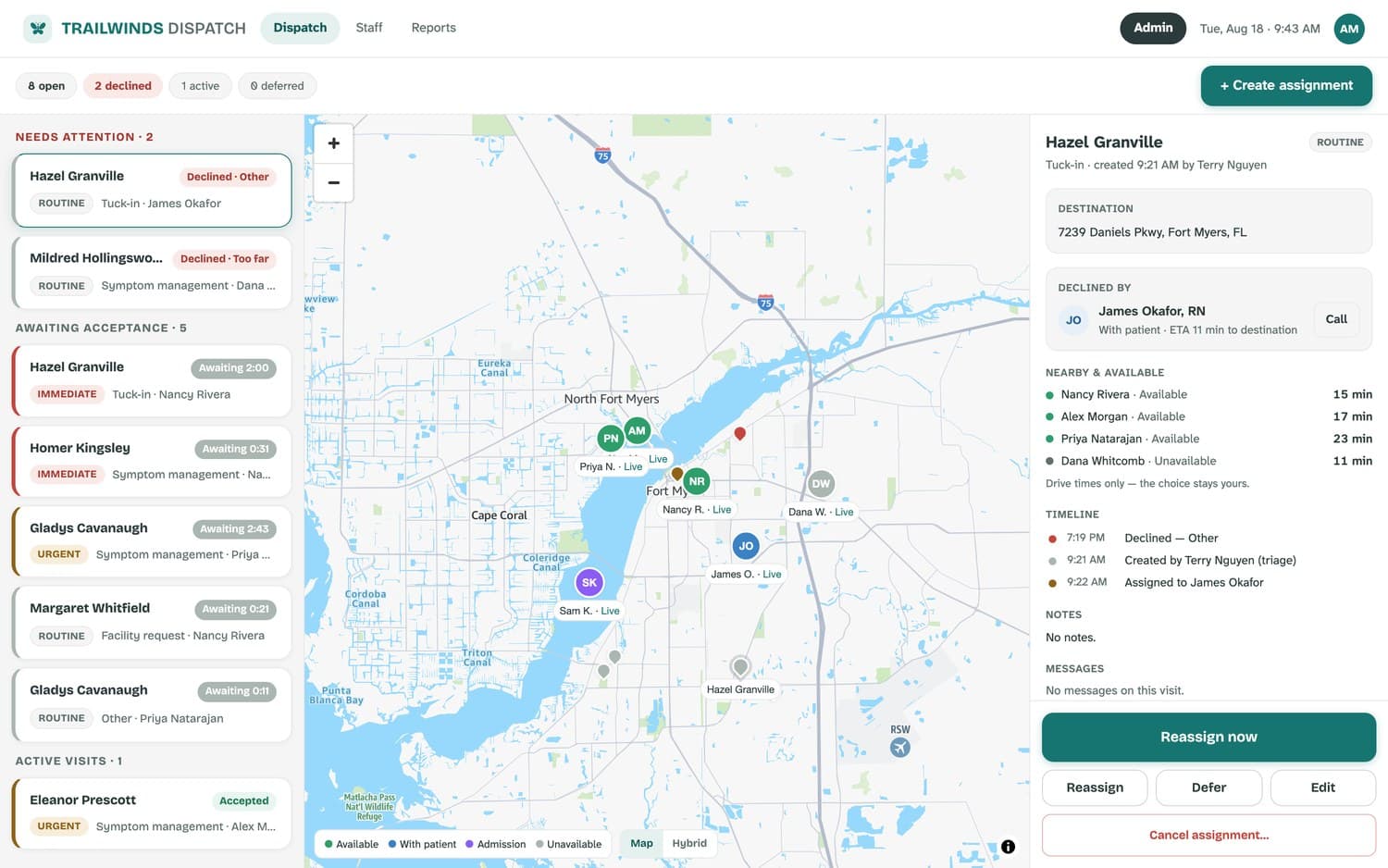
The strip along the top
The counters are the first thing to read: open is everything live, declined and escalated appear in red and amber only when they are not zero, and active and deferred sit quietly beside them. The teal button on the right creates a new assignment.
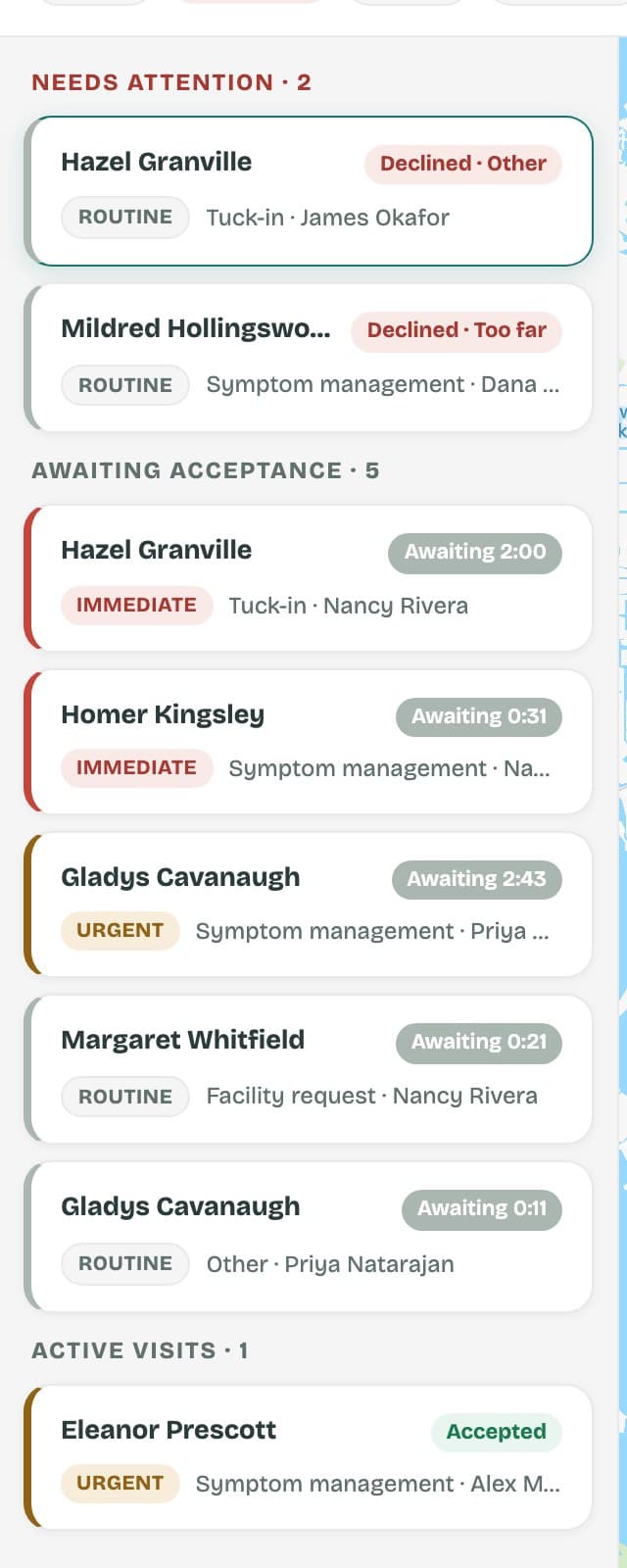
The queue, grouped by what it needs from you
- Needs attention
- Declined visits and anything that has escalated. Work this group first — it is the only one titled in red.
- Awaiting acceptance
- Sent, not yet accepted. Each card counts up; the timer turns amber at the first escalation and red at the second.
- Active visits
- Accepted, en route, or arrived — someone is on it.
- Deferred
- Scheduled to come back later, with the return time on the card.
The map
- Coloured pins are nurses, tinted by their current status; the legend sits at the bottom left.
- The red pin is the destination of the selected visit.
- Click a nurse to select them; click a visit pin to jump the panel to that visit.
- “Live” beside a nurse means their position is current. A nurse who has gone quiet is marked stale on the Staff board.
Creating an assignment
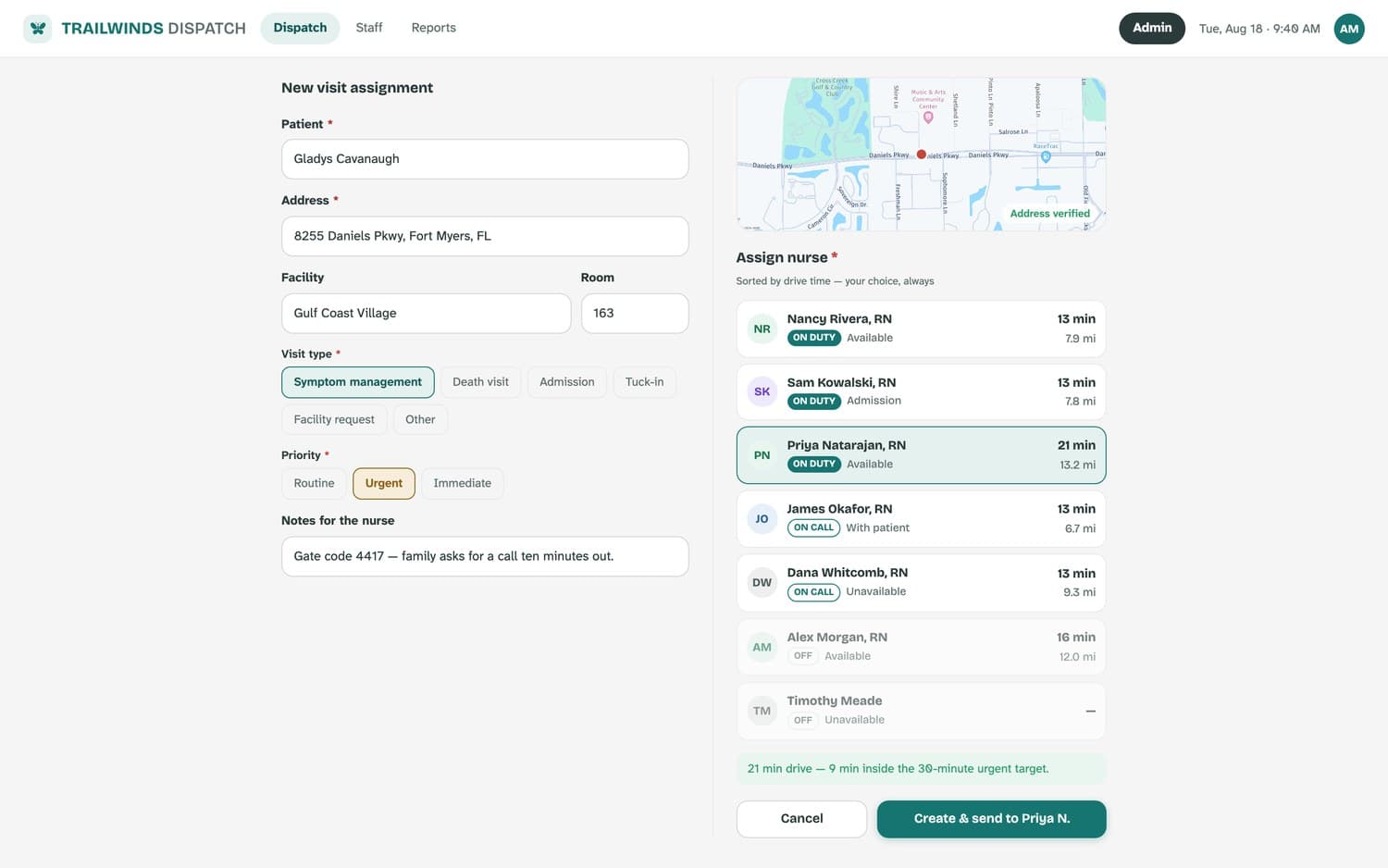
This is the screen you fill in while the family is still on the phone. It follows the order you already think in — who, where, what kind, how urgent, who goes — and the whole thing is one send.
What happens after you send
The visit moves through the same five states every time, and every step is stamped with the second it happened.
| State | What it means | Who sets it |
|---|---|---|
| Assigned | Sent to the nurse; the acceptance clock is running. | You |
| Accepted | The nurse has it and is coming. | The nurse, one tap |
| En route | They are driving. | The nurse |
| Arrived | They are at the door. The phone may prompt when it detects arrival, but the nurse confirms it. | The nurse |
| Completed | Visit finished; the record closes and moves to History. | The nurse |
Escalation runs itself
If nobody accepts, Trailwinds alerts your on-call chain at five minutes and again at ten — the exact numbers are yours to set under Admin → Organization. The card’s timer changes colour as each alert fires, the escalation is written into the visit timeline, and it stays on the report the next morning whether or not anyone remembers it happened.
Declines and no answers
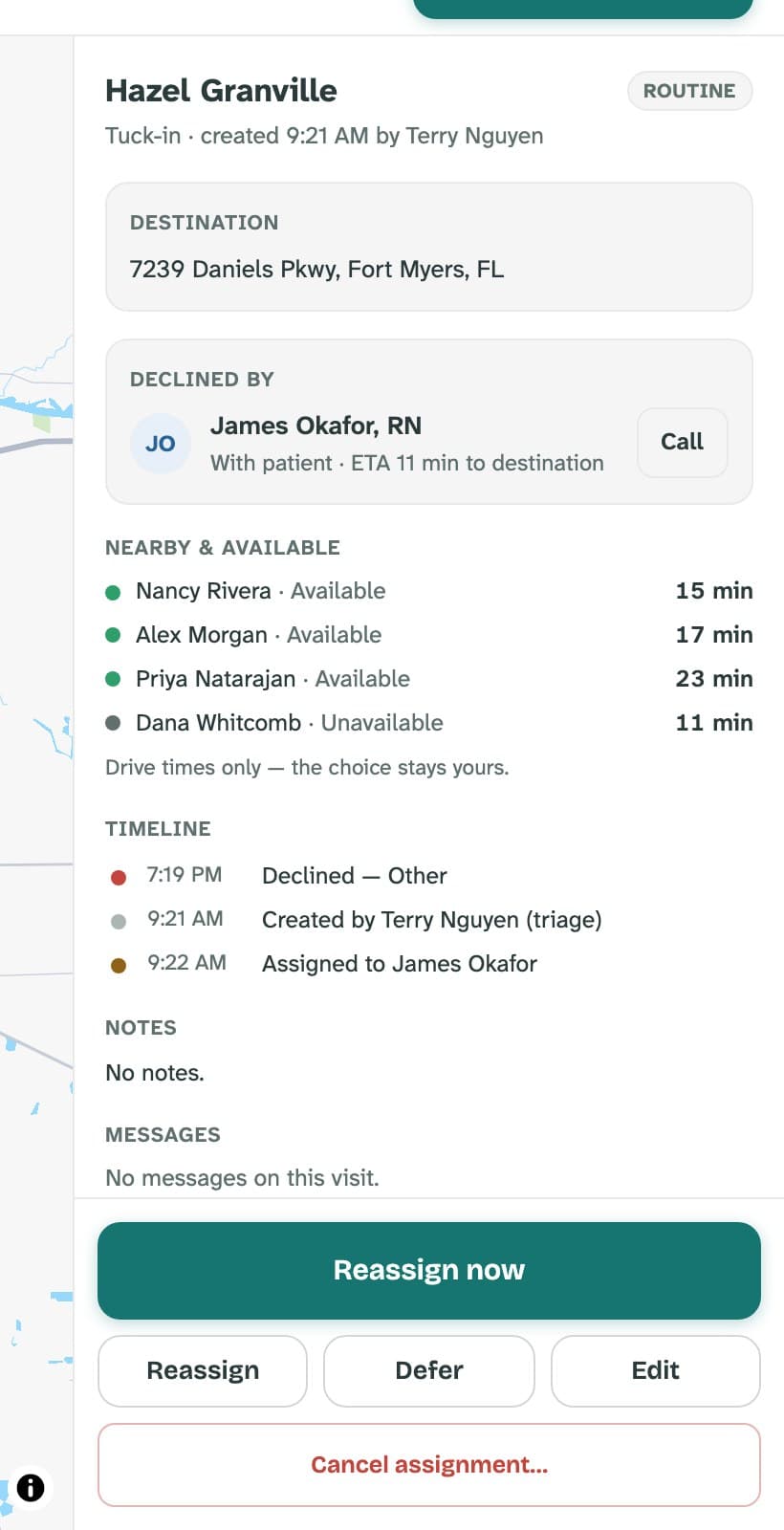
A decline is not a failure — it is information arriving early. It lands back on your board immediately, with the reason attached.
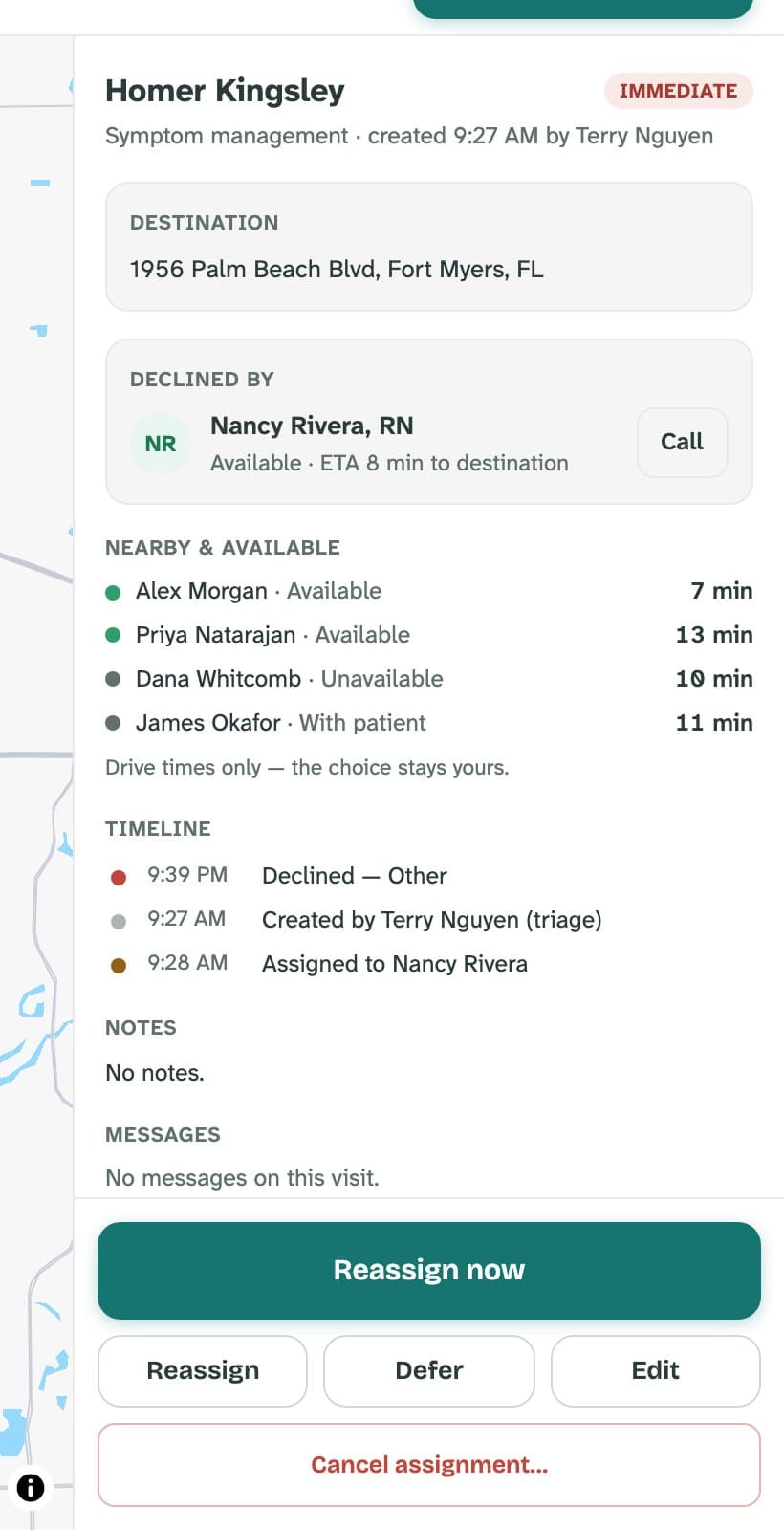
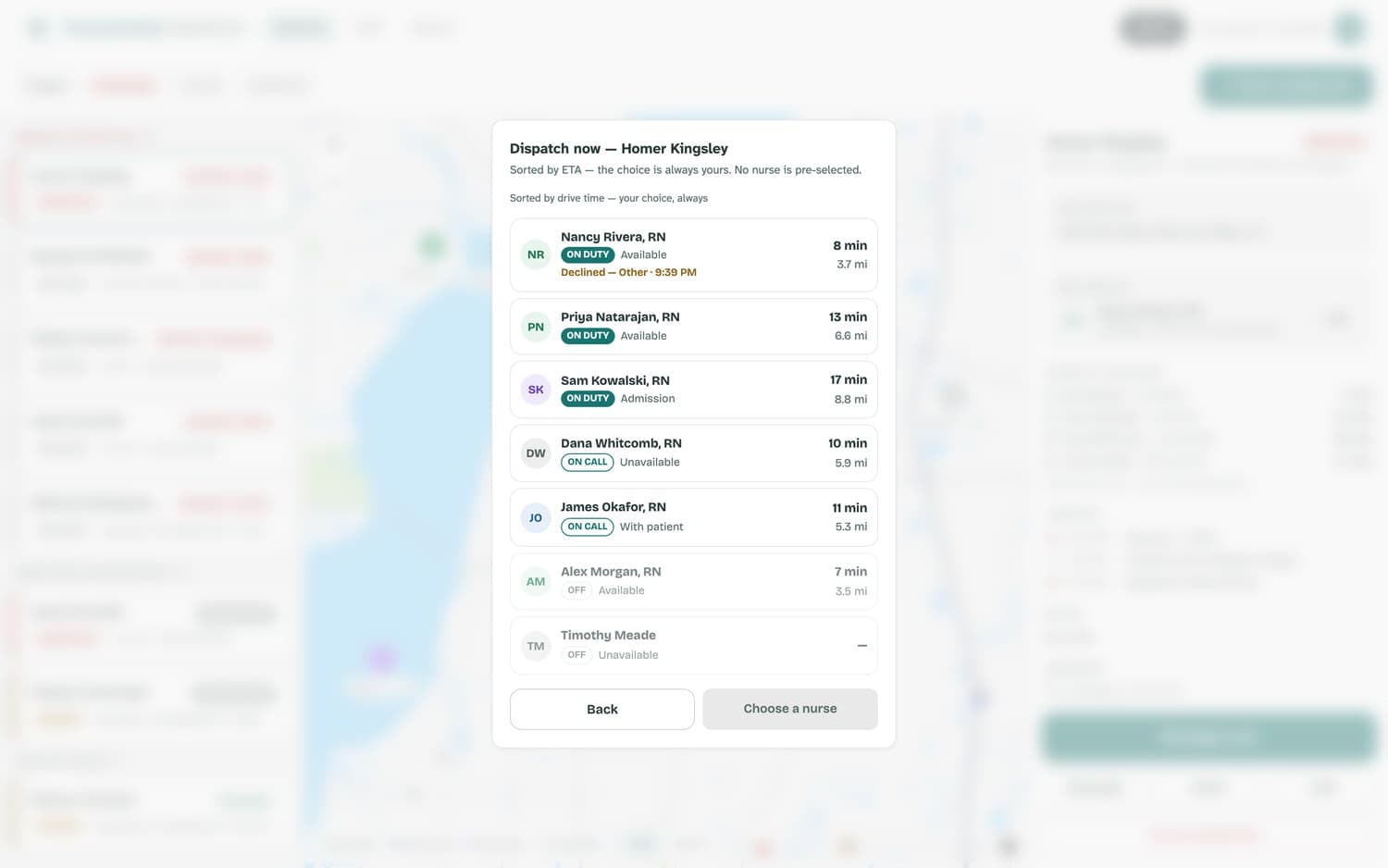
Your options, in the order most people use them
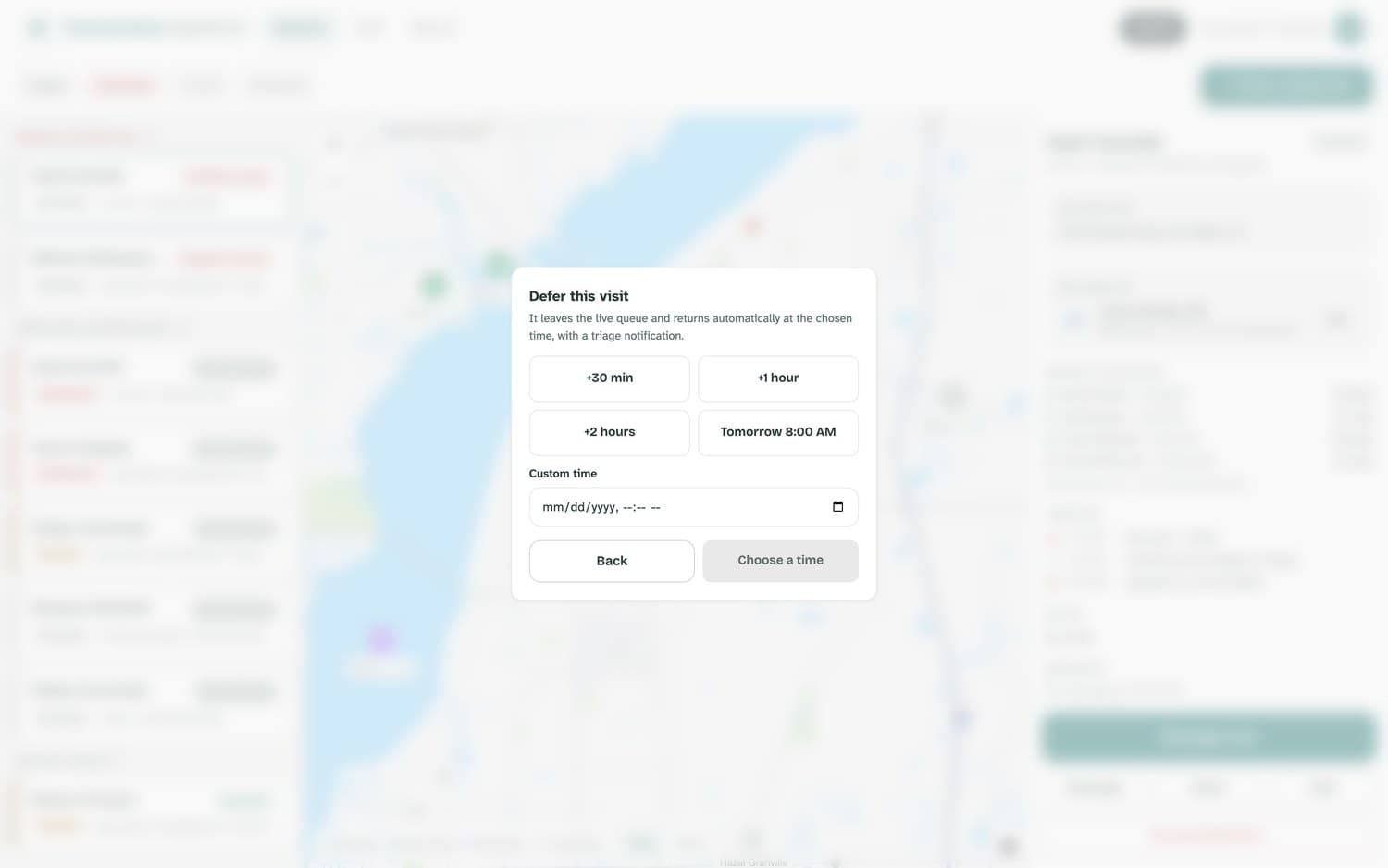
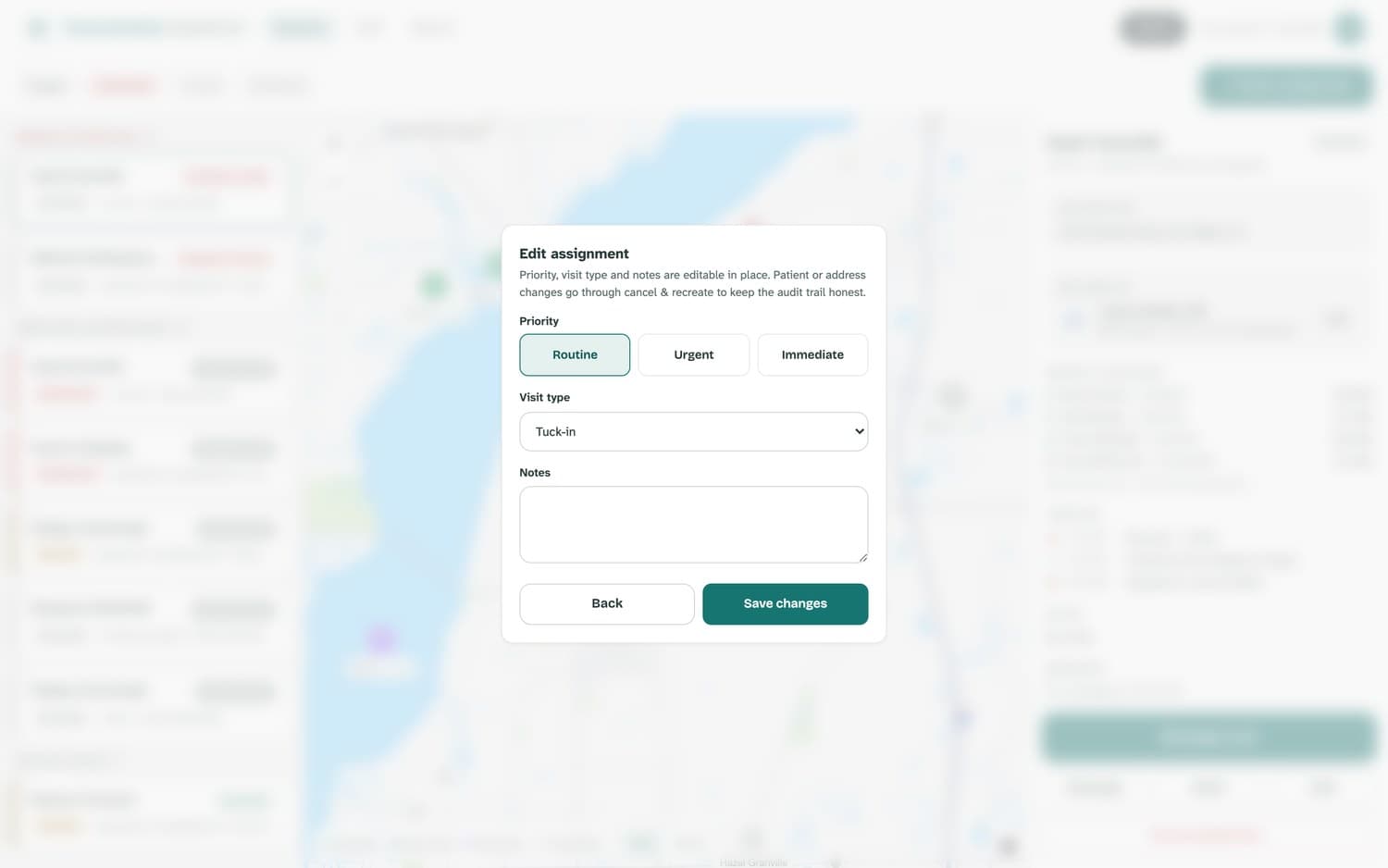
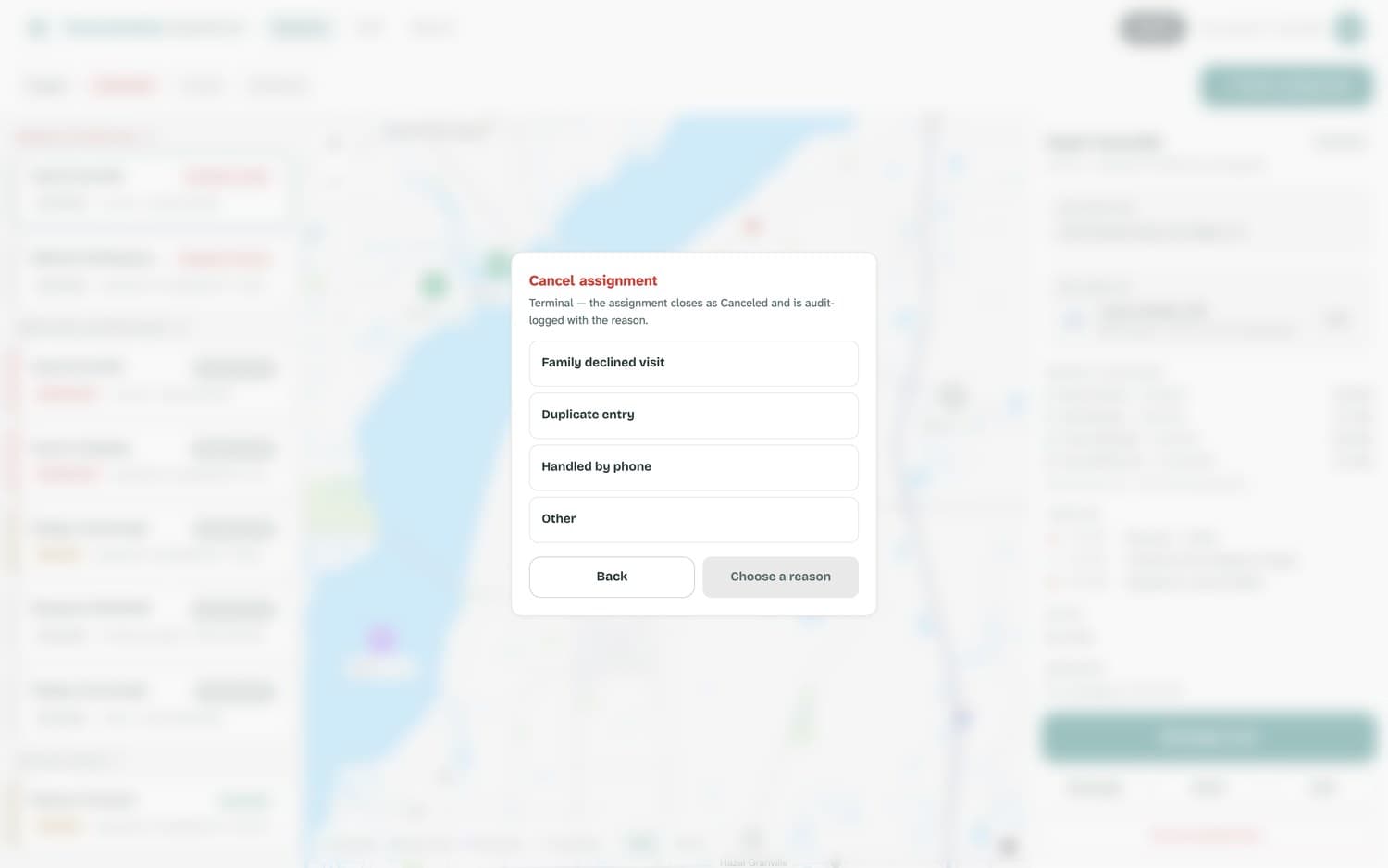
Defer, edit, cancel
Three smaller actions live under the panel's main button. Each one keeps the record honest about what happened.
Messages on a visit
Anything worth remembering about a visit belongs on the visit, not in a phone call nobody wrote down.
- The Messages box at the bottom of the detail panel is a thread between the desk and the nurse on that visit.
- A nurse can send a note when they complete a visit — “needs a follow-up in three days” — and it arrives in the messages inbox on the board's top strip, even though the visit itself has closed.
- Messages stay attached to the visit record and appear in its history entry afterwards.
The Staff board
The dispatch board answers what is happening to the visits. This one answers who you have tonight and what they are carrying.
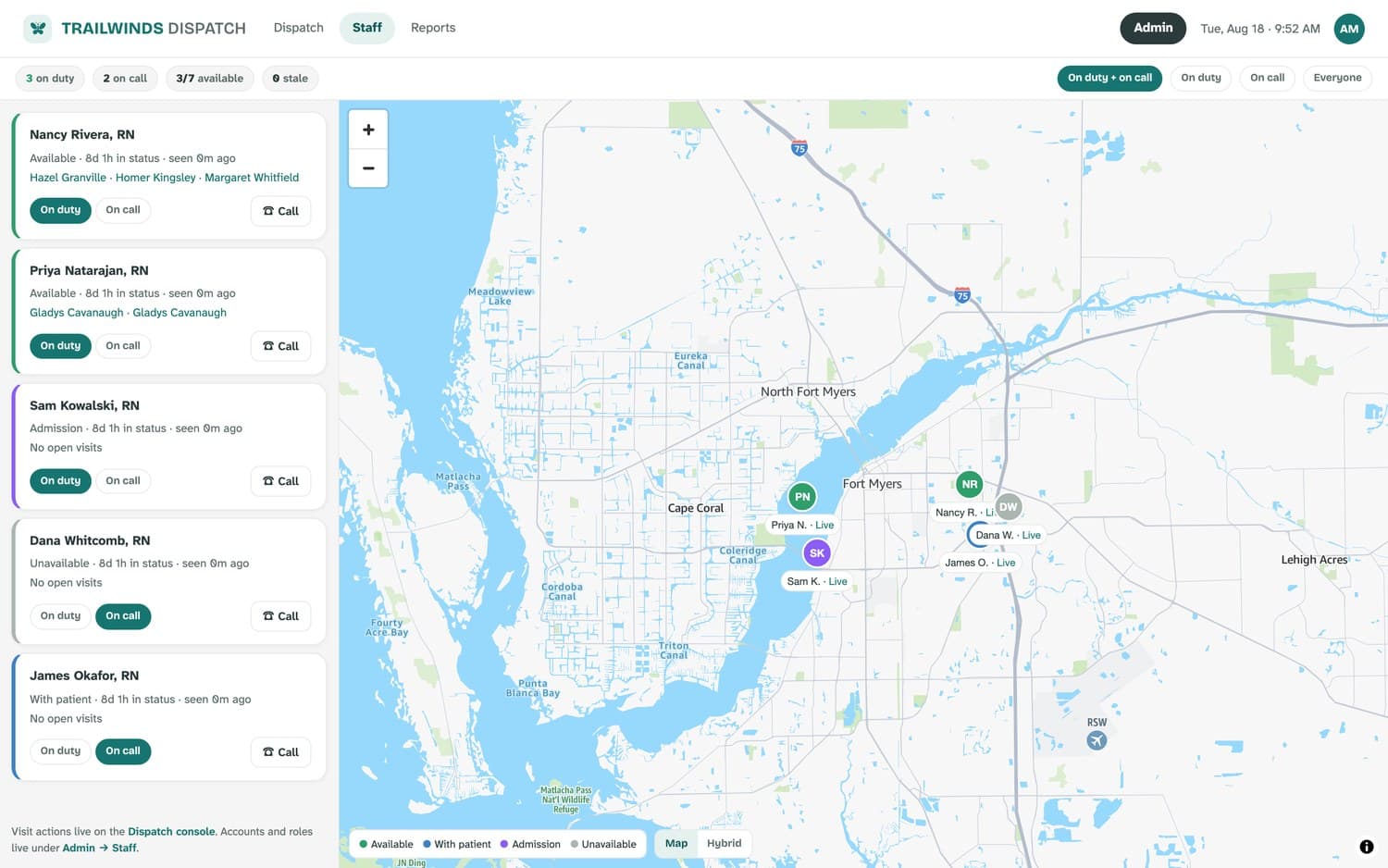
- On duty / On call
- Each nurse sets these in the app. If someone forgets, triage or an administrator can flip them here — the change is recorded as acting on their behalf.
- Status and time in status
- Available, With patient, Admission, or Unavailable — and how long they have been that way.
- Seen … ago
- How recently their phone reported in. Positions arrive every five to ten minutes while sharing is active.
- Stale / offline
- An amber chip appears when an on-duty or on-call nurse's position has aged out — usually a phone with no signal, occasionally a phone that needs attention.
- Open visits
- Listed on each card. Clicking a patient name jumps straight to that visit on the dispatch console, where all the actions live.
Reports
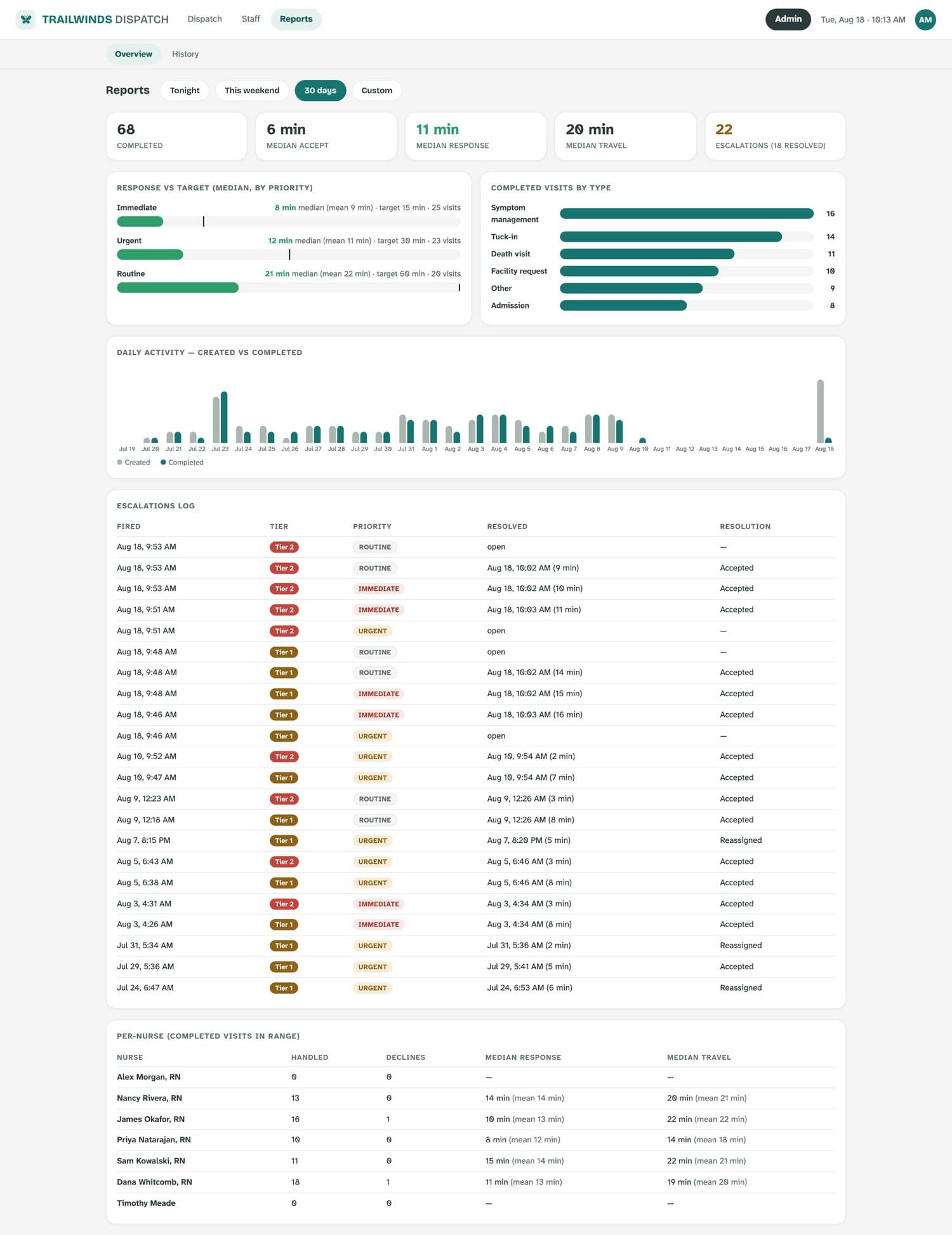
Everything here is an aggregate — counts and times, no patient details — which is why it is safe to put in front of a board or a surveyor.
Choosing a range
Tonight and This weekend follow on-call windows rather than calendar days: tonight runs 5 PM to 8 AM, the weekend runs Friday 5 PM to Monday 8 AM. 30 days and Custom do what they say.
What each block tells you
- The five tiles
- Completed visits, median time to accept, median response (send to arrival), median travel, and how many escalations fired — with how many resolved.
- Response vs target
- Median response by priority against the targets you set. The bar reads green inside target, red outside.
- Escalations log
- Every alert that fired, when it resolved, and how: accepted, reassigned, or still open.
- Per-nurse
- Visits handled, declines, and median response and travel per nurse. Visible to administrators and leadership.
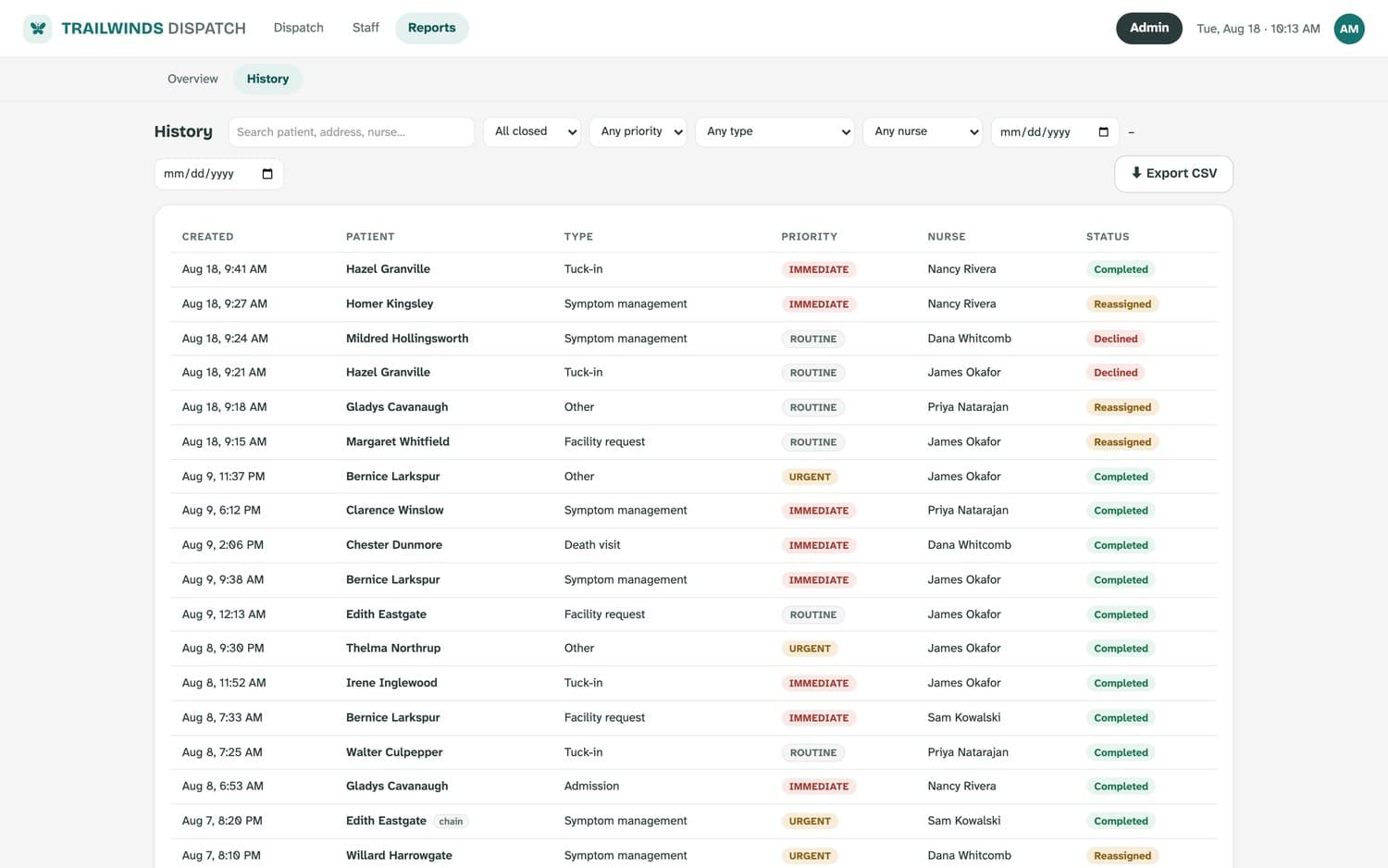
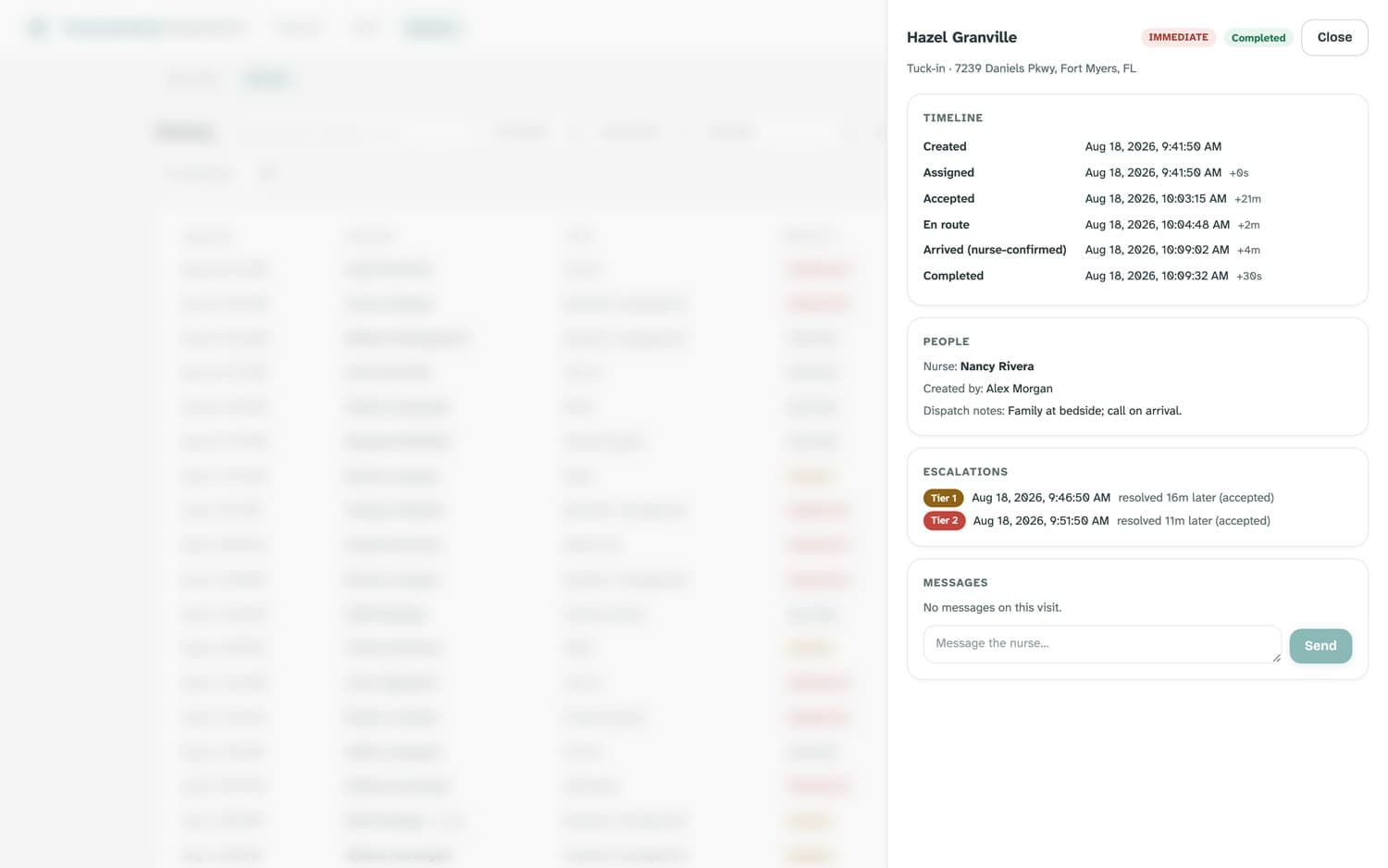
History and export
Every closed visit, searchable, with the full record behind each row.
Admin setup
Everything you set up once lives behind the dark Admin button: your people, your patients, and the numbers that govern escalation and response.
Staff
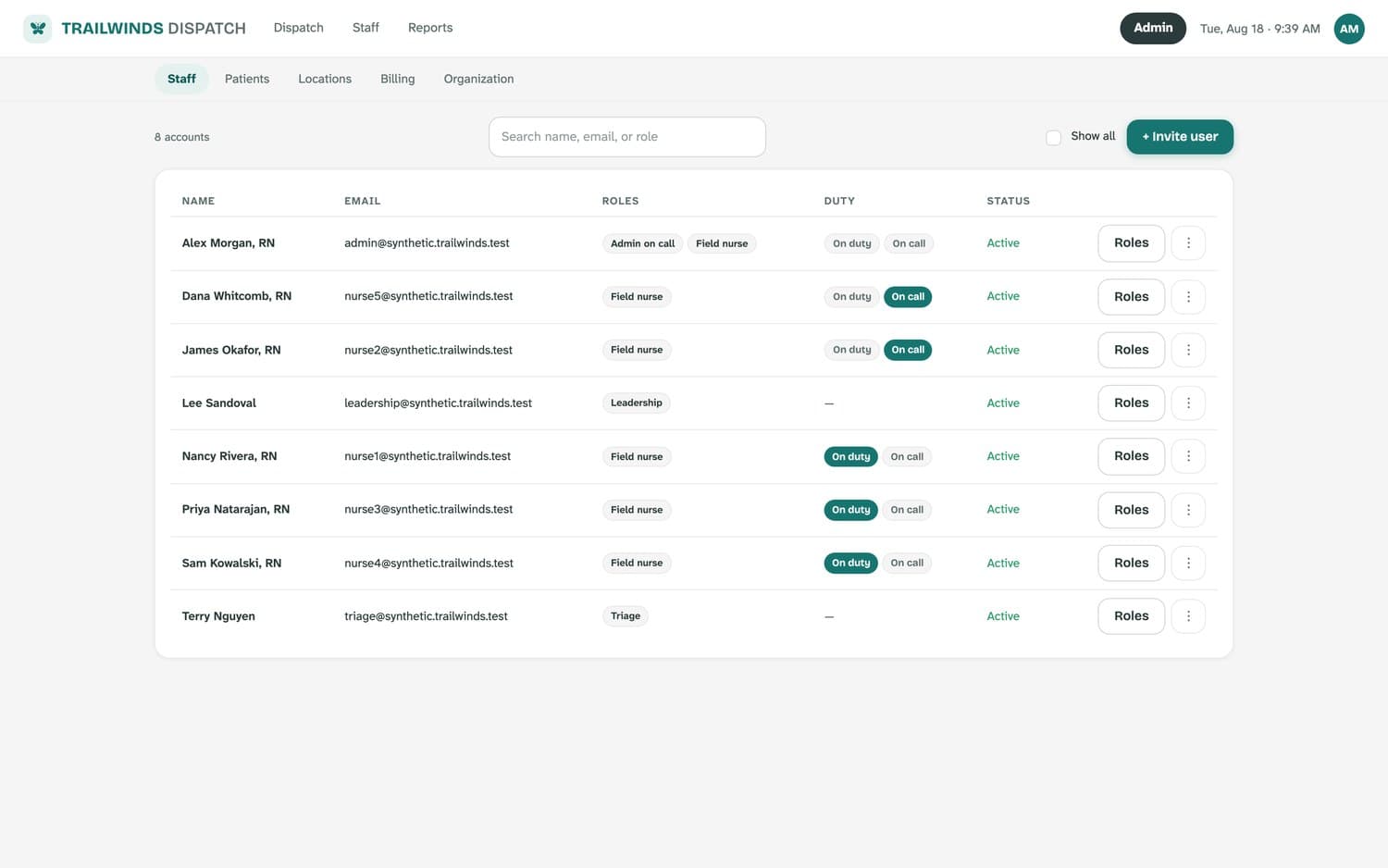
- Roles change any time; the change takes effect on their next request, not their next login.
- Unlock reopens an account locked by failed sign-ins.
- Deactivate ends their sessions immediately and keeps their history intact — this is what you use when someone leaves.
- Phone numbers matter: they are what the Call buttons on the board dial.
Patients
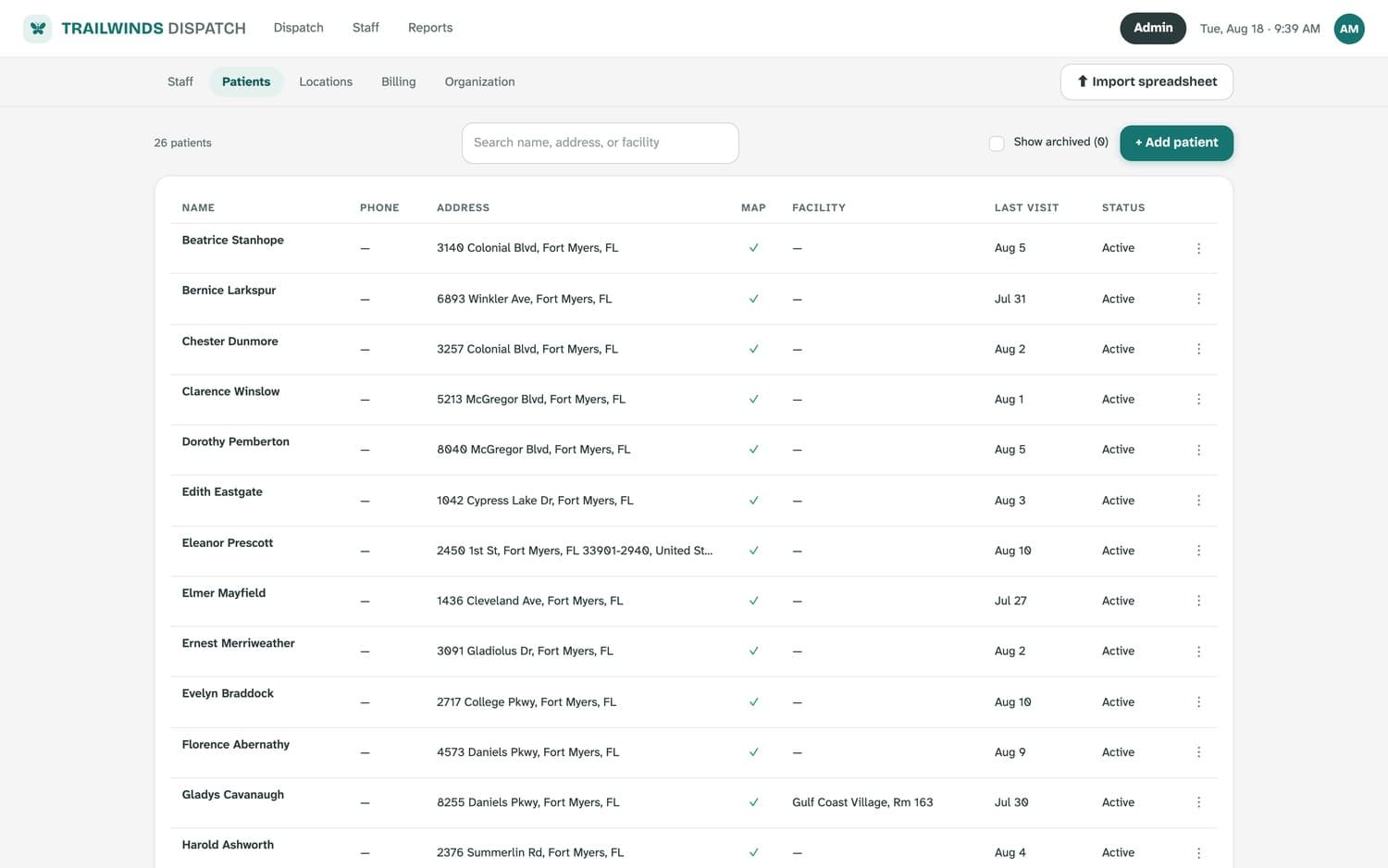
- Dispatch notes on a patient are for gate codes and parking — not clinical information.
- An address that will not verify can be placed on the map by hand, and stays where you put it.
- Archive a patient to take them off the active census; their visit history stays, and they can be restored.
Organization
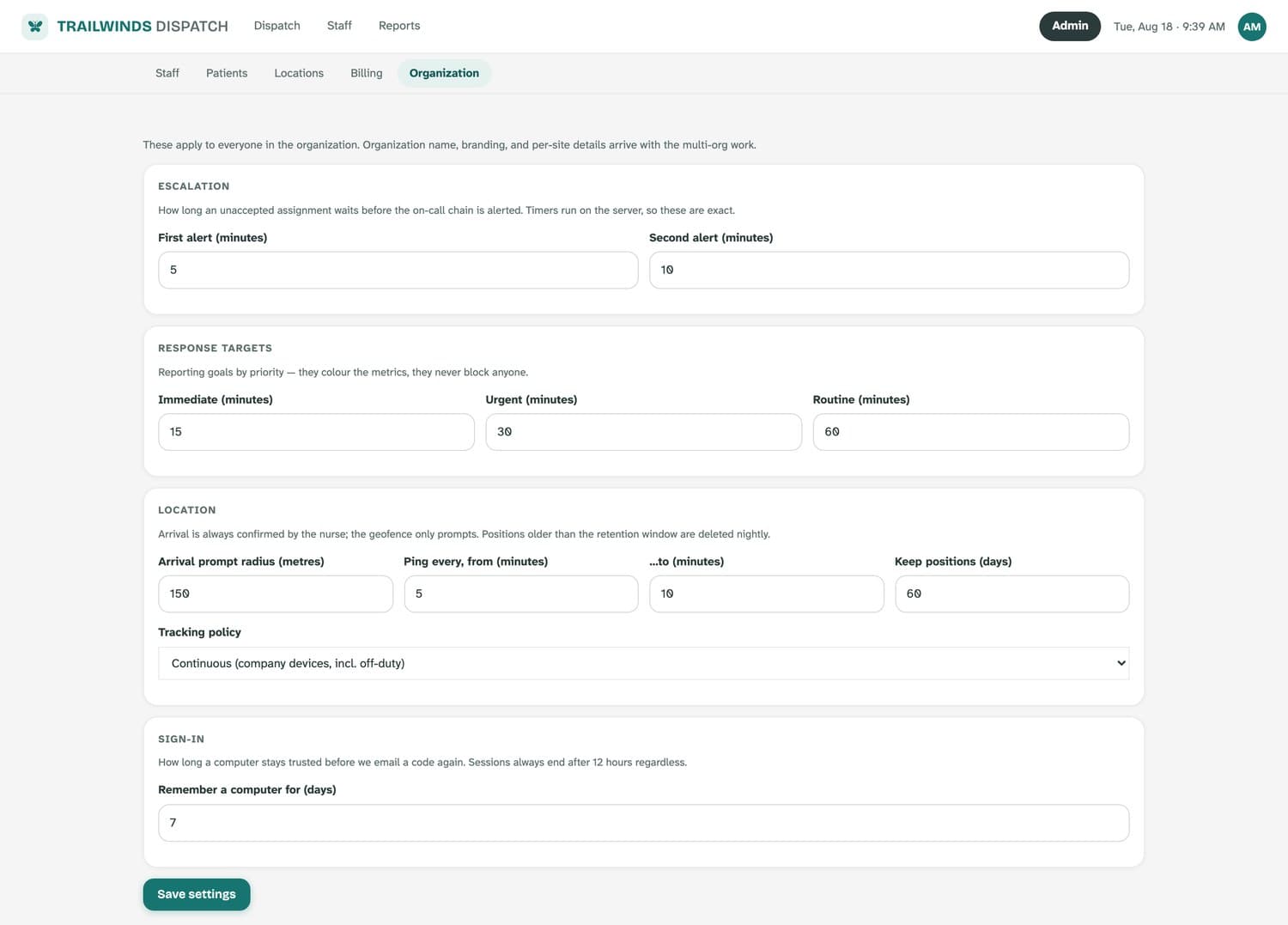
| Setting | Default | What it controls |
|---|---|---|
| First alert | 5 minutes | How long an unaccepted visit waits before the on-call chain is alerted. |
| Second alert | 10 minutes | The second, louder alert. |
| Response targets | 15 / 30 / 60 minutes | Reporting goals for immediate, urgent, and routine. They colour the metrics; they never block a dispatch. |
| Arrival prompt radius | 150 metres | How close a nurse must be before their phone offers to mark them arrived. |
| Ping every | 5–10 minutes | How often a phone reports its position while sharing is active. |
| Keep positions | 60 days | How long position history is kept before it is deleted automatically. |
| Tracking policy | Per your agency | Whether sharing follows on-call hours or runs continuously on company devices. |
| Remember a computer | 7 days | How long before a verified computer has to use an emailed code again. |
Your own account
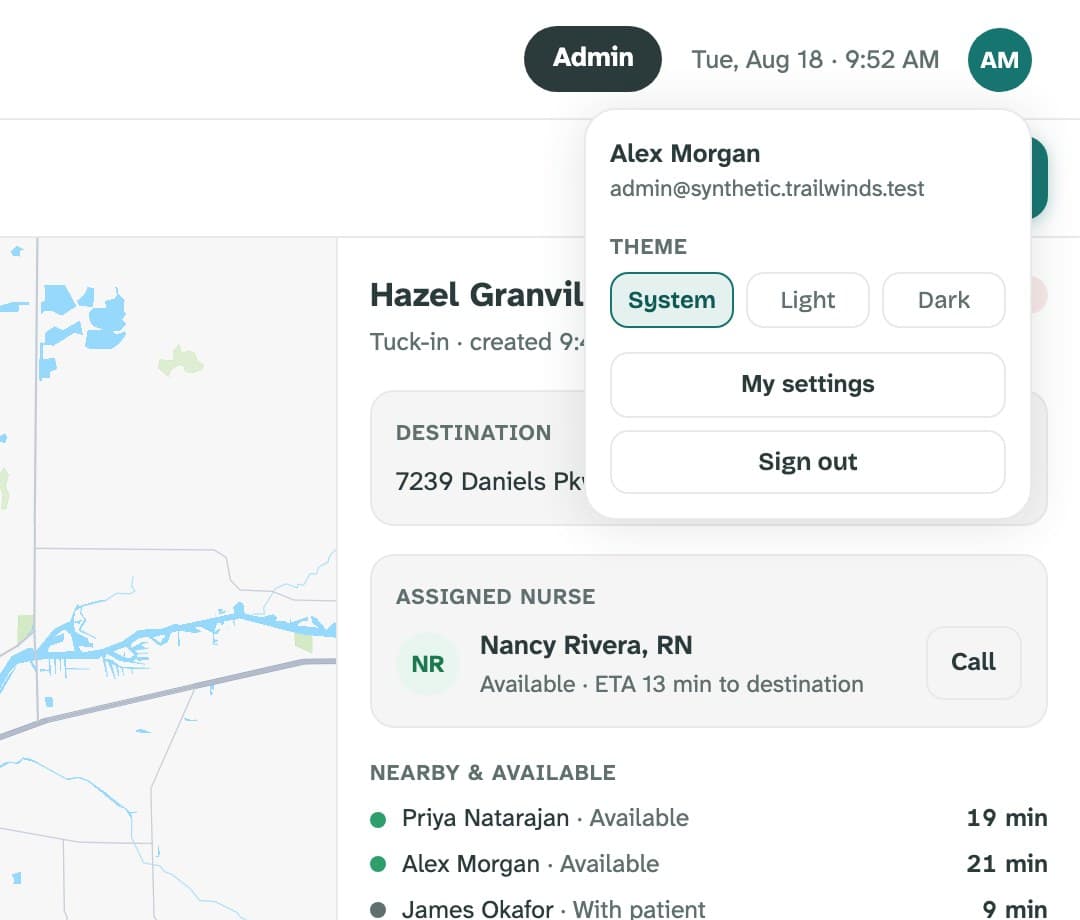
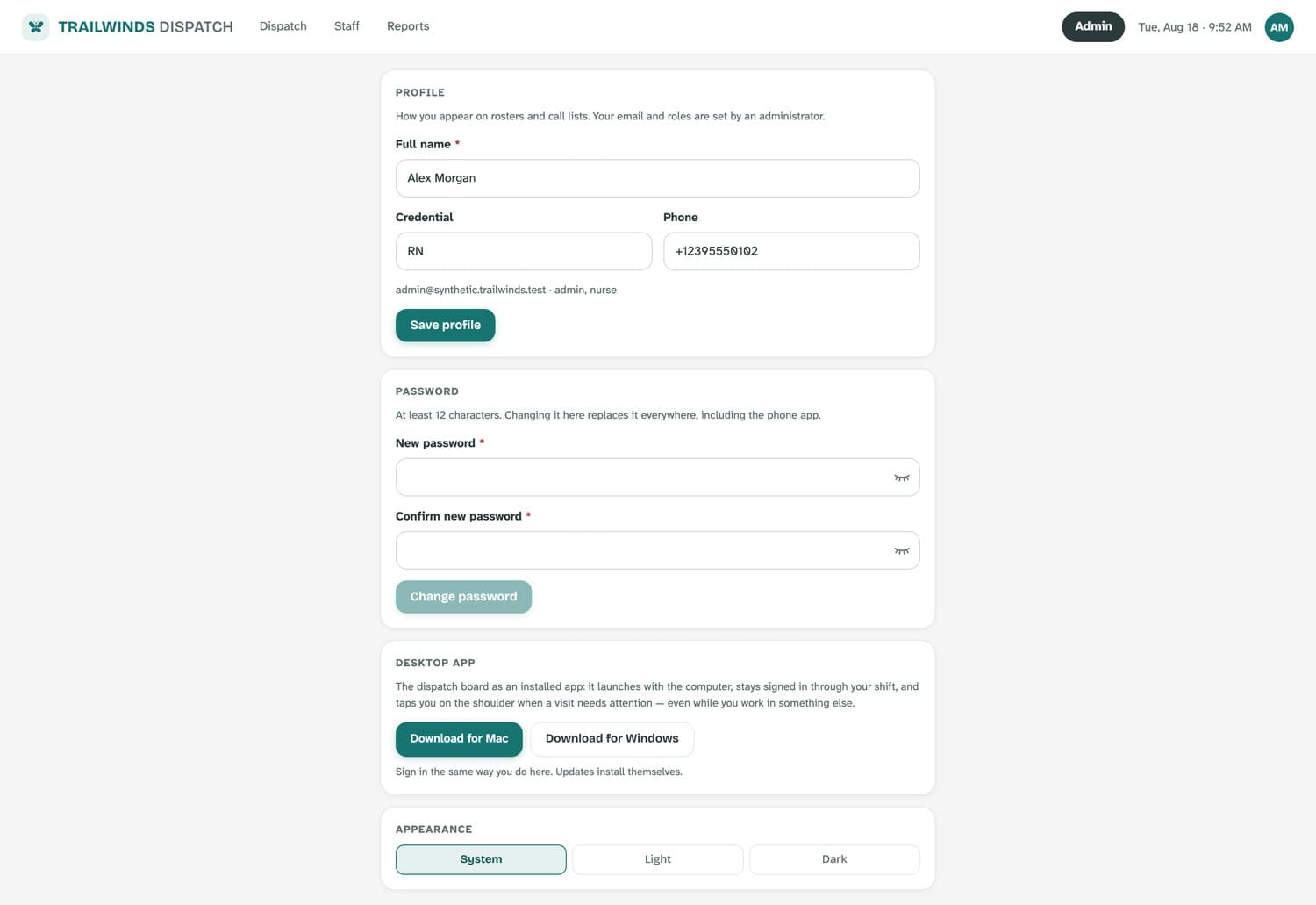
Personal settings hang off your initials in the top-right corner, not the main menu — they are yours, not a place you work.
What the system will not do
A short list, because the things a dispatch platform refuses to do matter as much as its features.
- It will not assign a nurse for you. It informs; you decide.
- It will not mark a nurse arrived on its own. The phone can notice and offer to prompt — the nurse confirms, and any automatic detection is stored separately.
- It will not put patient information in a push notification, a log, a link, or an error message.
- It will not let the screen be the security boundary: every action is checked again on our servers, so a hand-typed address gets no data it should not have.
- It will not send a patient address to Google or Apple. Maps, address lookup, drive times, and navigation all run inside our HIPAA boundary under a business associate agreement.
If something looks wrong
Most of what goes sideways on a night shift has a two-line answer.
- A nurse is missing from the picker
- They are probably deactivated or have no nurse role — check Admin → Staff. Off-duty nurses do appear, greyed out, at the bottom.
- Drive times show as “—”
- Either the address has not verified, or that nurse's phone has not reported a position recently. The visit can still be sent.
- A nurse shows as stale or offline
- Their phone has not checked in inside the sharing window — usually signal. Call them; the board is not the only tool you have.
- The board looks frozen
- A banner appears when the connection drops, and the board catches up by itself when it returns. Nothing you clicked is lost.
- Someone is locked out
- Five failed sign-ins locks an account; an administrator unlocks it under Admin → Staff.
The iPhone side — accepting, declining, navigating, confirming arrival, and completing a visit — is covered in the nurse app guide, which is also available as a PDF to print or email to your on-call staff.
Still stuck? Your administrator is the fastest route; anything they cannot answer comes to us.