The app on your phone, from the first alert to the last tap.
Trailwinds is built for one hand, at night, in a car, sometimes with gloves on. There is one obvious button at every stage — this guide walks a whole visit, then covers everything around it.
Your first sign-in
Your administrator adds you first — there is no sign-up. Install Trailwinds on your work iPhone, then open it once before your first shift, not at the start of one.
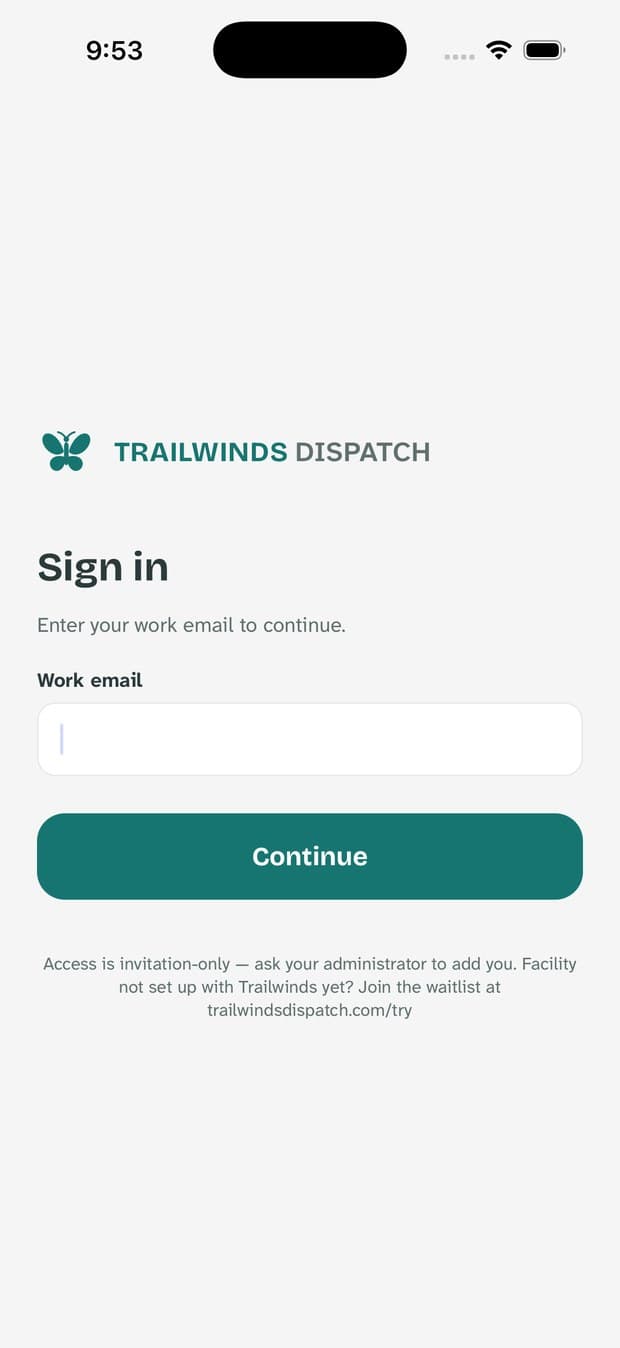
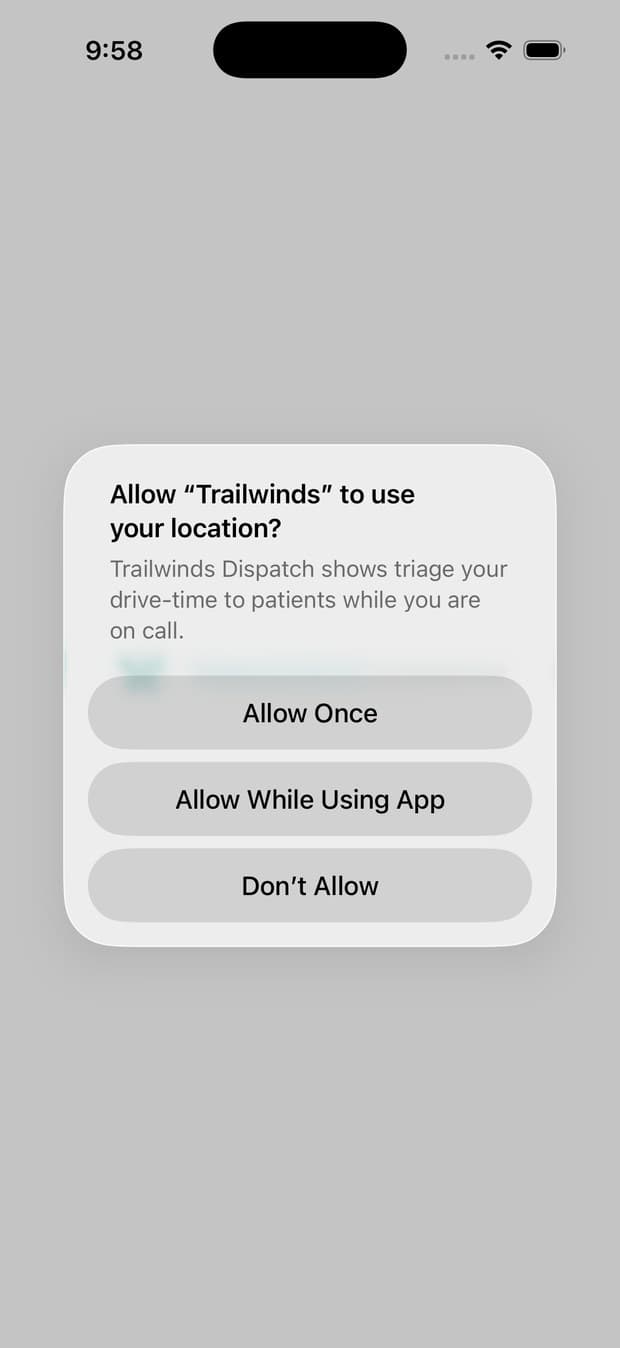
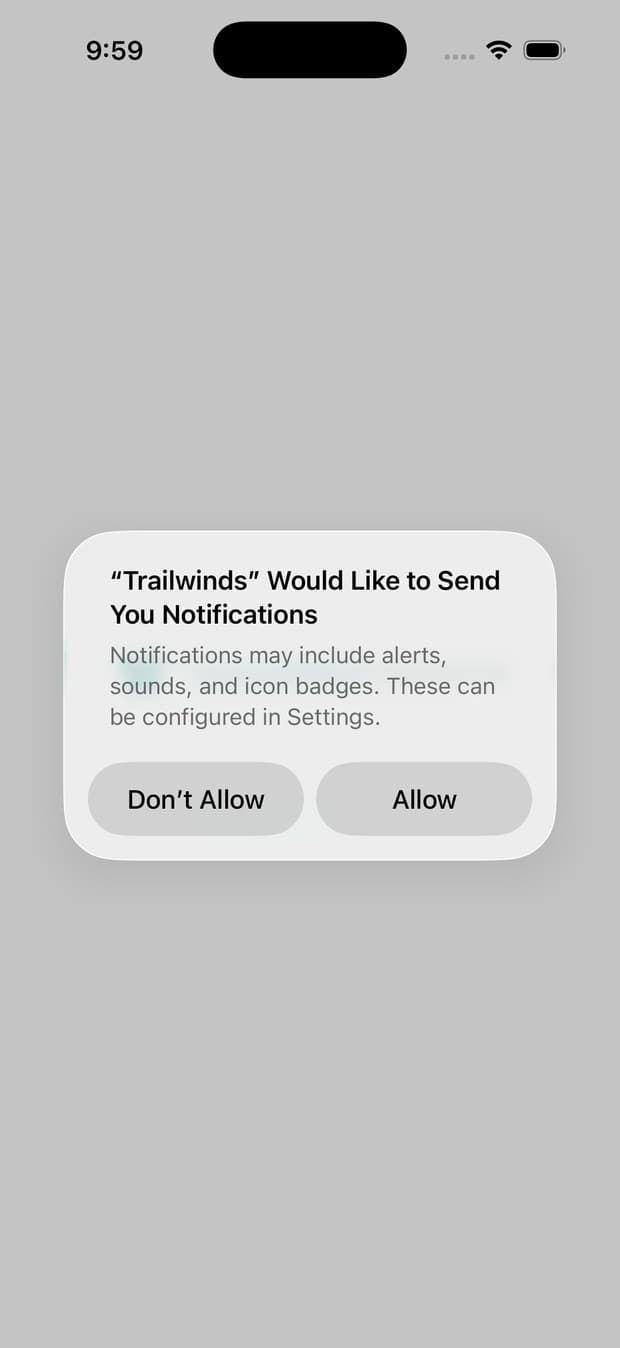
Every screenshot in this guide comes from a demonstration system. The patients, nurses, addresses, and phone numbers in it are invented — no real patient information appears anywhere on this page.
The two permissions, and why
Neither one is optional in practice, and neither does what people usually fear.
- Notifications
- How a new assignment reaches you, and the only way. An immediate visit is sent as a critical alert, which sounds even when your phone is silenced or in Do Not Disturb — as long as you tapped Allow when the app asked for Critical Alerts permission. If you dismissed that prompt, turn it on in iOS Settings → Notifications → Trailwinds → Critical Alerts. The notification itself never contains a patient name or address — you open the app to see who and where.
- Location — Always
- So triage can see roughly how far you are from a patient before they send you, and so your phone can offer to mark you arrived when you pull up. Sharing follows the schedule your agency sets — for most agencies, that is while you are on duty or on call, and not otherwise.
Your home screen
Three things, top to bottom: whether you are working, how you are doing, and what you are carrying.
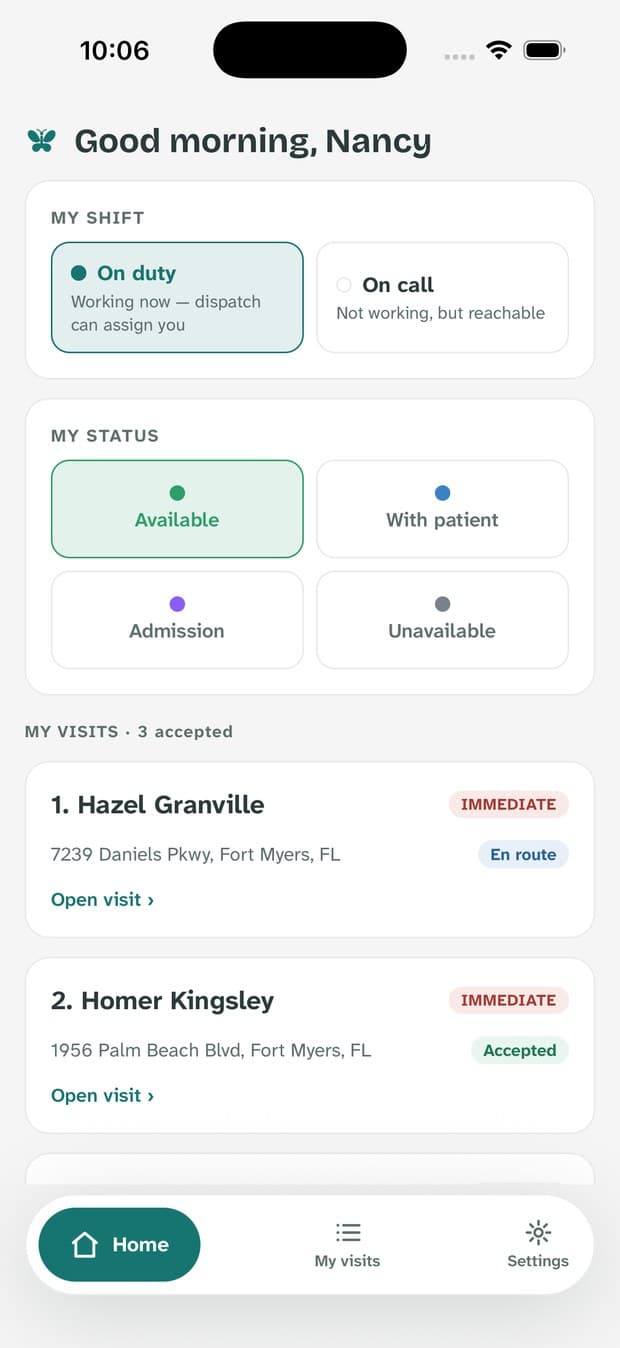
My shift
On duty means you are working now and triage can assign you. On call means you are not working but you are reachable. Set these yourself at the start and end of your shift — the desk sees them instantly. If you forget, triage can flip them for you, and the record shows they did it on your behalf.
My status
Available, With patient, Admission, or Unavailable. One tap, and it is on the dispatch board before you put the phone down. Triage uses this to decide who to send — keeping it honest is the single most useful thing you can do for the night.
Your visits
Every visit you have accepted, in working order: most urgent first, and within the same priority, the one that has been waiting longest. Tap any card to open it.
When a visit comes in
Your phone sounds, and the assignment takes over the whole screen — there is nothing to hunt for.
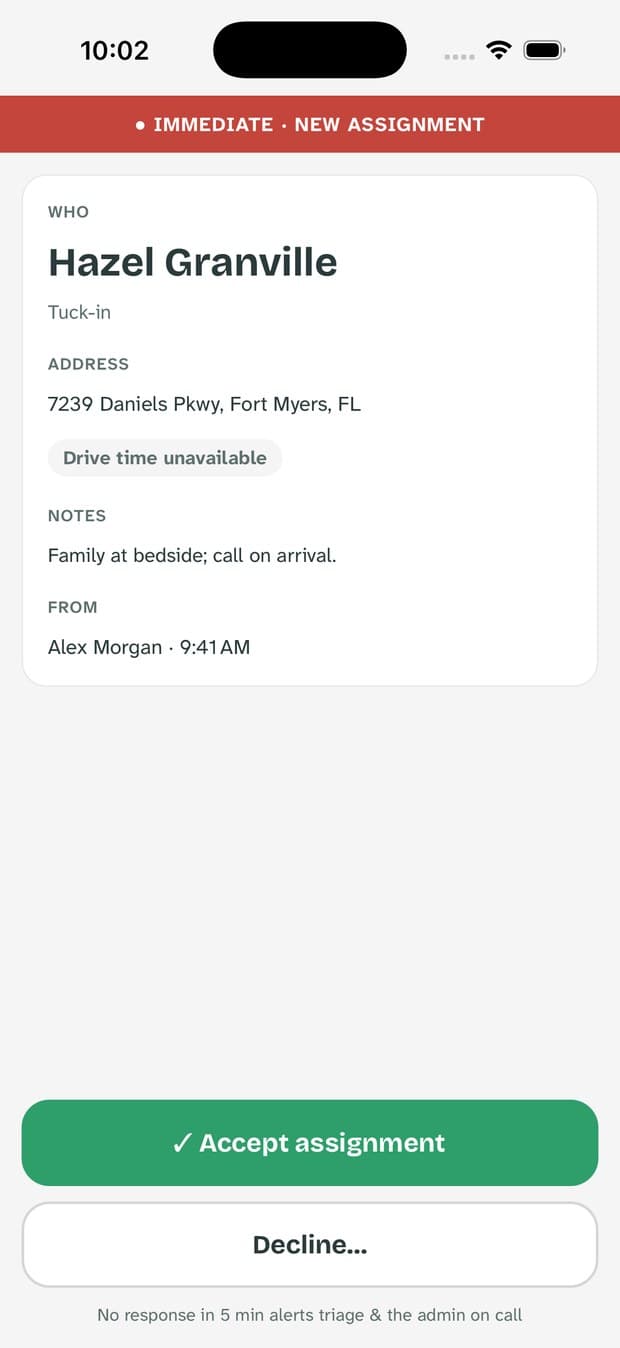
The band across the top is the priority: red for immediate, amber for urgent, teal for routine. Below it: the patient, the address (with facility and room if there is one), your drive time, the dispatcher’s notes, and who sent it.
If several visits arrive together, they queue: accept one and the next appears behind it.
Declining
Declining is a normal part of the night. The reason you choose is what lets triage pick the right person next.
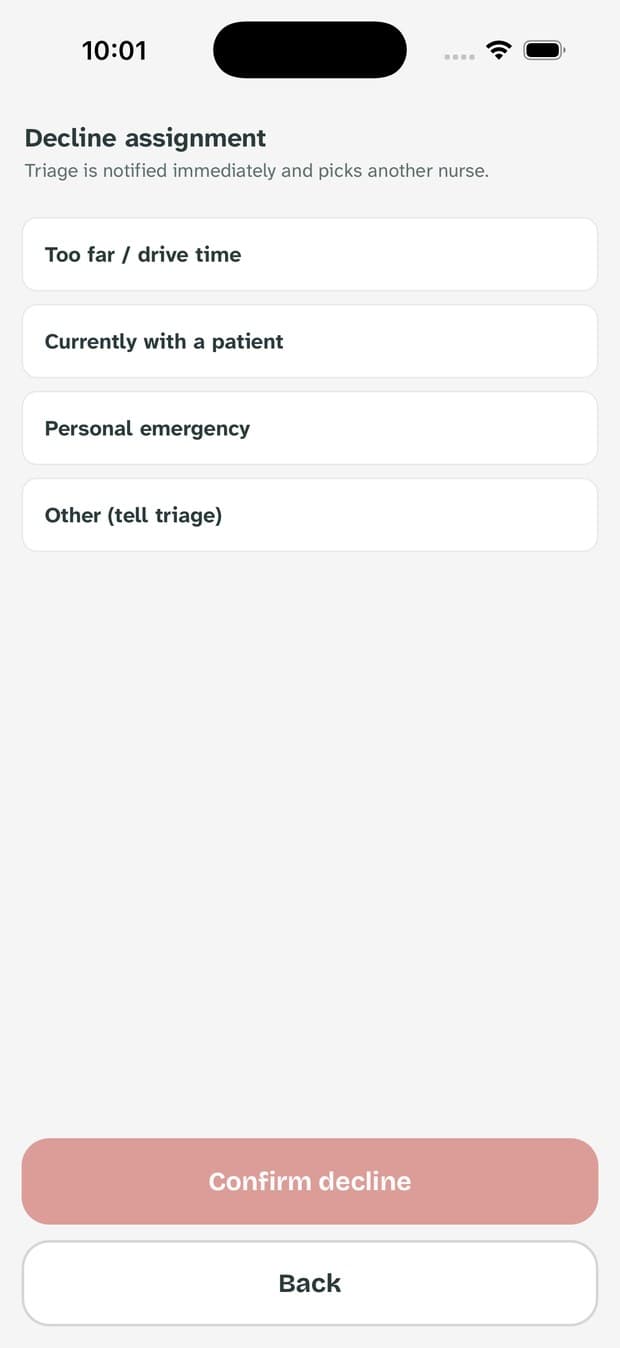
| Reason | Use it when |
|---|---|
| Too far / drive time | Someone else is closer and the patient should not wait for you. |
| Currently with a patient | You are mid-visit and cannot leave. |
| Personal emergency | Anything happening to you. |
| Other (tell triage) | Anything else — add a short note so the desk is not guessing. |
The visit screen
Once a visit is yours, this is the only screen you need. It changes as you move through the visit, and there is always exactly one main button.
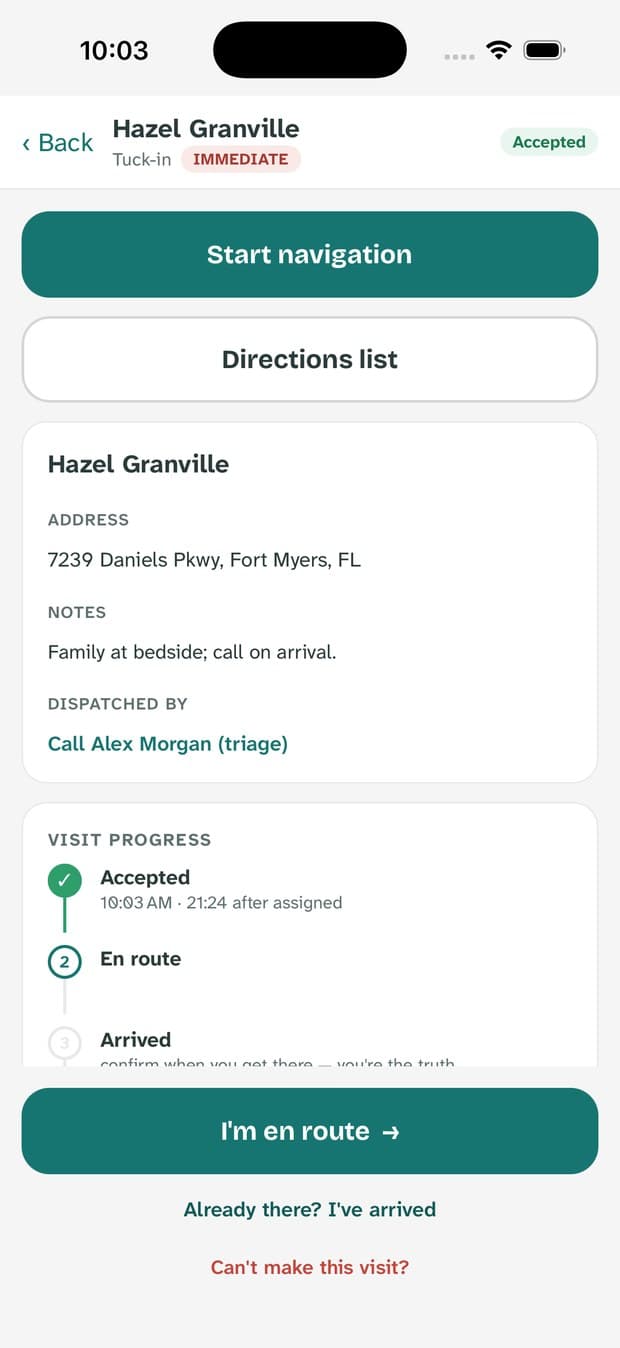
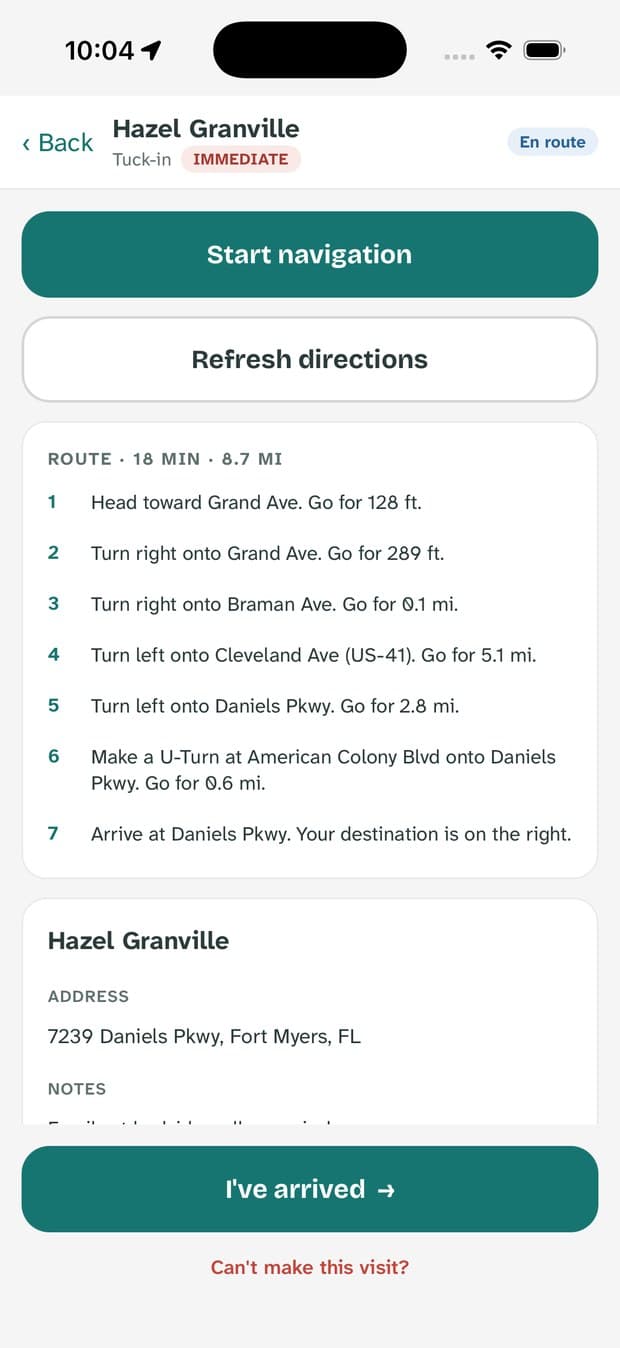
- Start navigation
- Turn-by-turn guidance with spoken directions, inside the app.
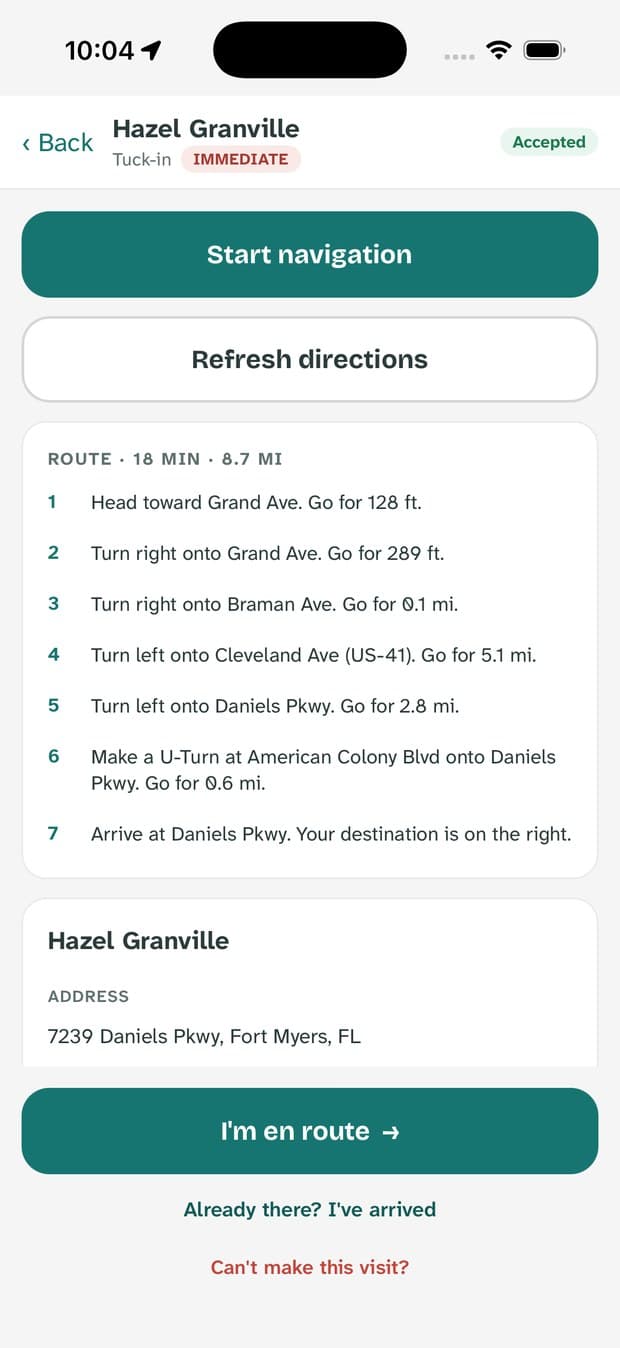
- Directions list
- The written route — distance, time, and every turn — for when you would rather read than be talked at.
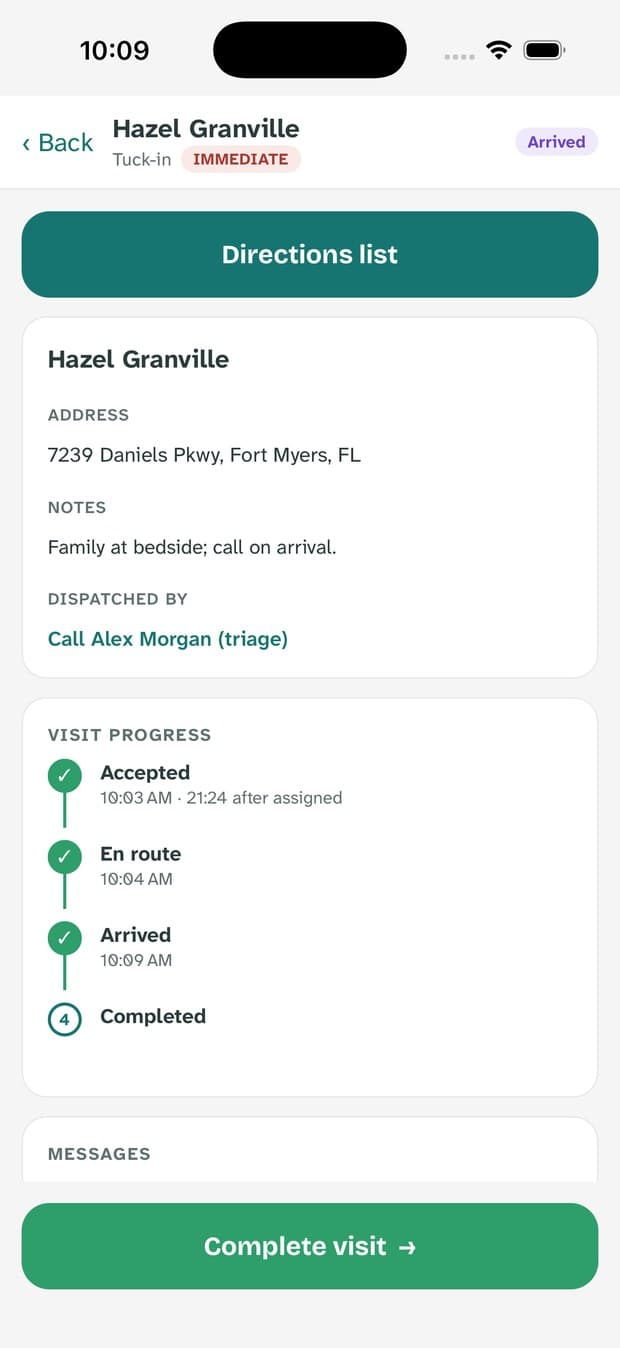
- The patient card
- Name, address, facility and room, the dispatcher's notes, and a tap-to-call link back to whoever sent the visit.
- Visit progress
- Accepted, en route, arrived, completed — with the time of each and how long it took.
- Messages
- A thread with the desk about this visit. Anything you write here stays attached to the record.
Getting there
Tap “I'm en route” when you start driving. It takes one second and it is what the family's wait time is measured against.
Arriving and finishing
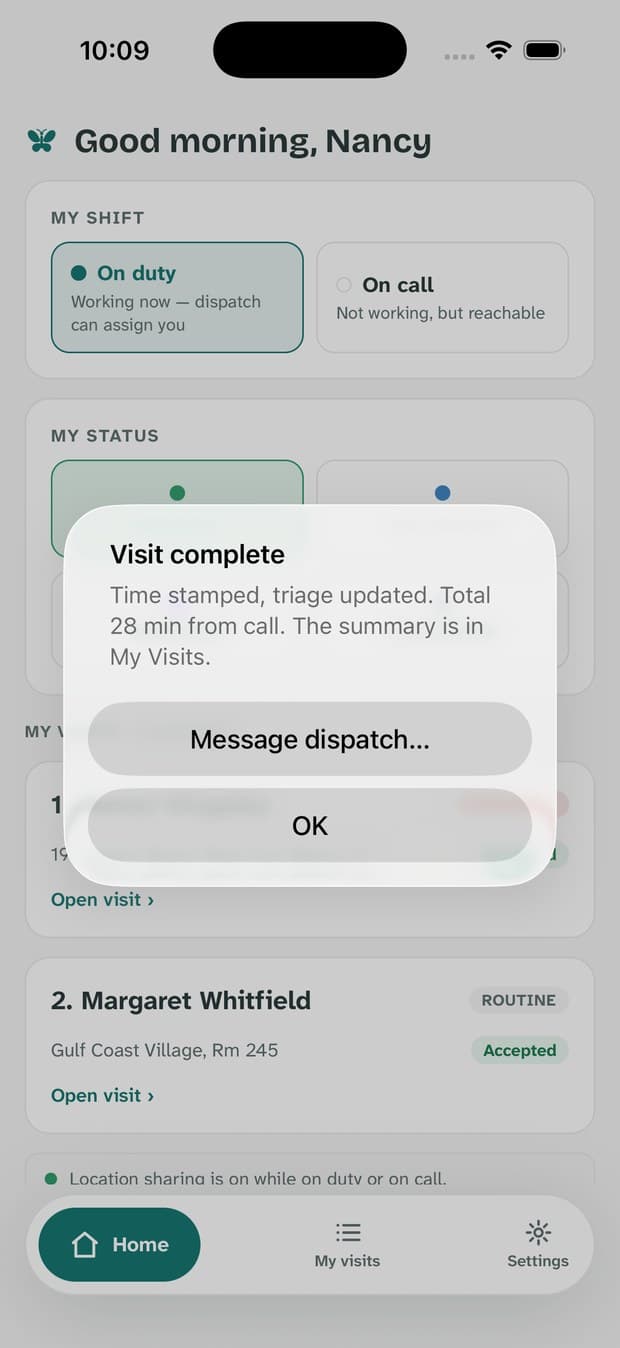
Two taps close a visit, and both of them are yours to make.
If you can't make it after all
A flat tyre, a call you cannot leave, a road that is closed. Tell the app rather than the voicemail.
On an accepted or en-route visit, tap Can’t make this visit? at the bottom of the screen, choose a reason, and add a short note — “flat tyre on Daniels Pkwy” is exactly the right amount of detail. The visit goes back to the dispatch board immediately, with your note, so the desk can reassign it without ringing round.
My visits
Your own record of the shift — useful at handover, and when someone asks what time you got there.
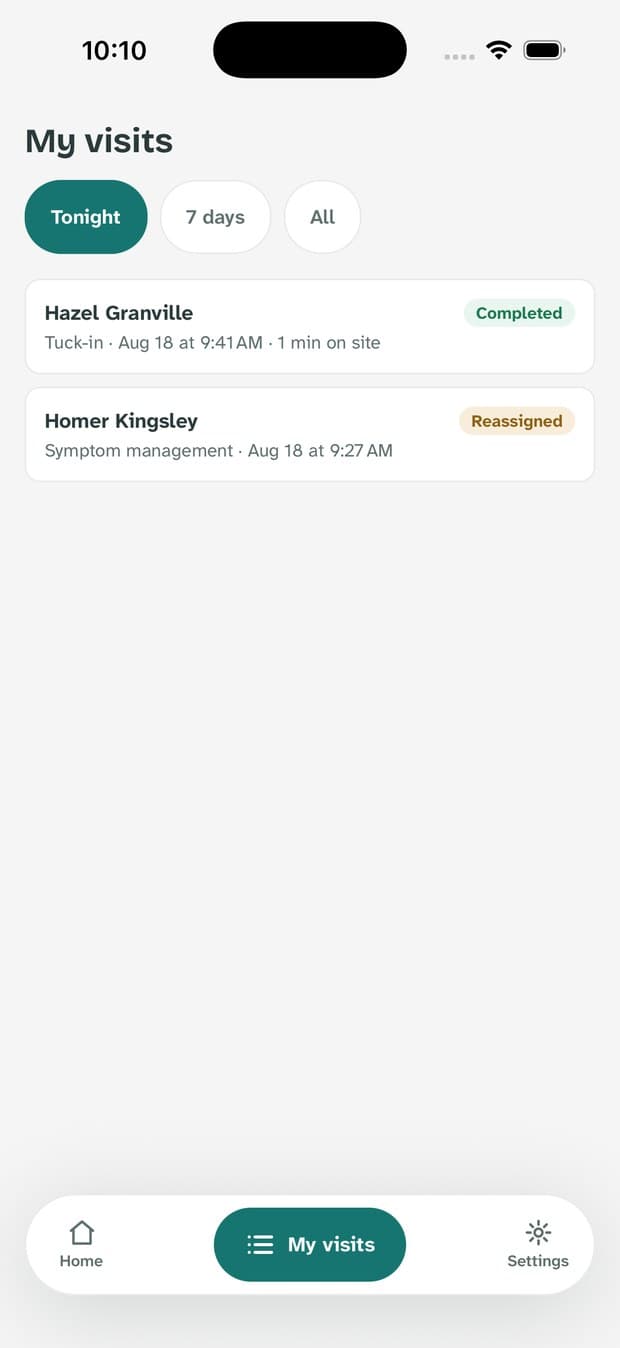
Every visit you handled, with what happened to it: completed, reassigned, declined. Tap one to see its full timeline.
“Tonight” follows the on-call window rather than the calendar day, so a visit at 1 AM still belongs to the night you started.
Settings
Four things worth knowing, and one you should do at the start of every shift.
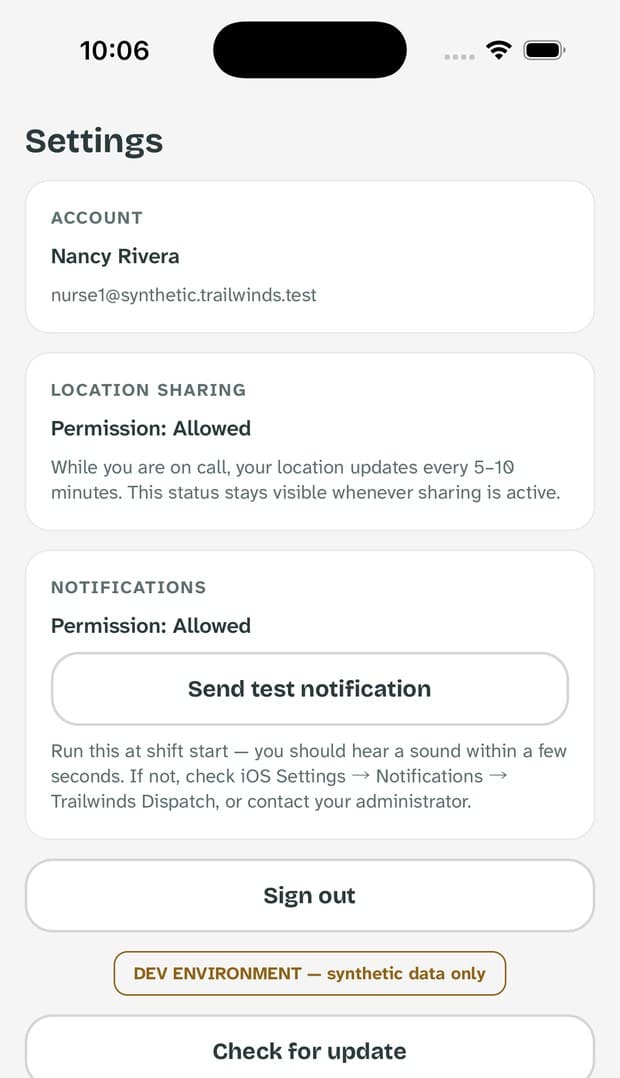
- Send test notification — do this at shift start. You should hear a sound within a few seconds. If you do not, something is wrong now rather than at 2 AM.
- Location sharing — shows the permission you granted and the schedule your agency set.
- Check for update — pulls the newest version. Updates are small and take seconds.
- Sign out — only if you are handing the phone to someone else. Signed out, you receive nothing.
What dispatch can see — and what it can't
Worth saying plainly, because nobody should have to guess about this.
| They can see | They cannot see |
|---|---|
| Your position while sharing is on, updated every five to ten minutes | Where you are outside the sharing window your agency set |
| Your duty state and your status, with how long you have been in it | Anything on your phone besides this app |
| The times you accepted, drove, arrived, and finished | Your speed, your route, or where you stopped along the way |
| Which visits you declined and the reason you chose | A justification for a decline beyond the reason you gave |
Positions older than your agency’s retention window — sixty days by default — are deleted automatically. Arrival is confirmed by you; anything the phone detected on its own is stored separately and never presented as your word.
If something goes wrong
The five things most likely to happen, and what to do about each.
- No sound when a visit arrives
- First open Settings in the app and send a test notification — you should hear two sounds. Then check iOS Settings → Notifications → Trailwinds: notifications and sounds on, and Critical Alerts on (that is what lets an immediate visit sound through a silenced phone). If it is still silent, tell your administrator.
- The sign-in code never arrives
- Check junk mail, confirm you used your work address, then tap Resend code. Only the newest code works.
- Drive time or directions unavailable
- The address has not verified, or your phone has no recent location fix. Drive by the address on the card and let the desk know.
- The app says you are offline
- Keep working. Your taps are queued and sent as soon as signal returns; nothing needs re-doing.
- Locked out
- Five wrong passwords locks the account. Your administrator unlocks it — no call to us needed.
How triage creates the assignment you receive, what escalation looks like from their chair, and where the response-time reports come from: the dispatch dashboard guide.
Both guides are available as PDFs, made for printing and handing out.